Mortgage — Simple Guide
This guide explains the Mortgage Tools part of the system in plain, everyday language. No technical words. If you can use email, you can use this.
Mortgage Tools helps you work out numbers for a client's home loan, track their loan application from start to finish, and remember to check in with past clients. It has these parts:
- Calculators — work out repayments, borrowing power, and more
- Loan Applications — track a loan from start to finish
- Documents — files attached to loan applications
- Follow-Ups — reminders to check in with past clients
- Loan Admin — set up your lenders and rates
1. Calculators
There are nine calculators, each for a different question. Click Mortgage Tools on the left-hand menu to see them all.
| Calculator | What it tells you |
|---|---|
| Repayment Calc | Monthly repayment for a loan amount |
| Extra Repayment | How much time/interest you save by paying extra |
| Compare Loans | Two loans side by side |
| Savings Calc | How much to save each month to hit a goal |
| Offset Calc | How much an offset account saves in interest |
| Serviceability | The most a client could realistically borrow |
| Product Finder | Which loans match a client's situation |
| Max LVR | The most a lender will lend against a property's value |
| Funding Calc | How much usable equity is in a client's properties |
Example: Repayment Calculator
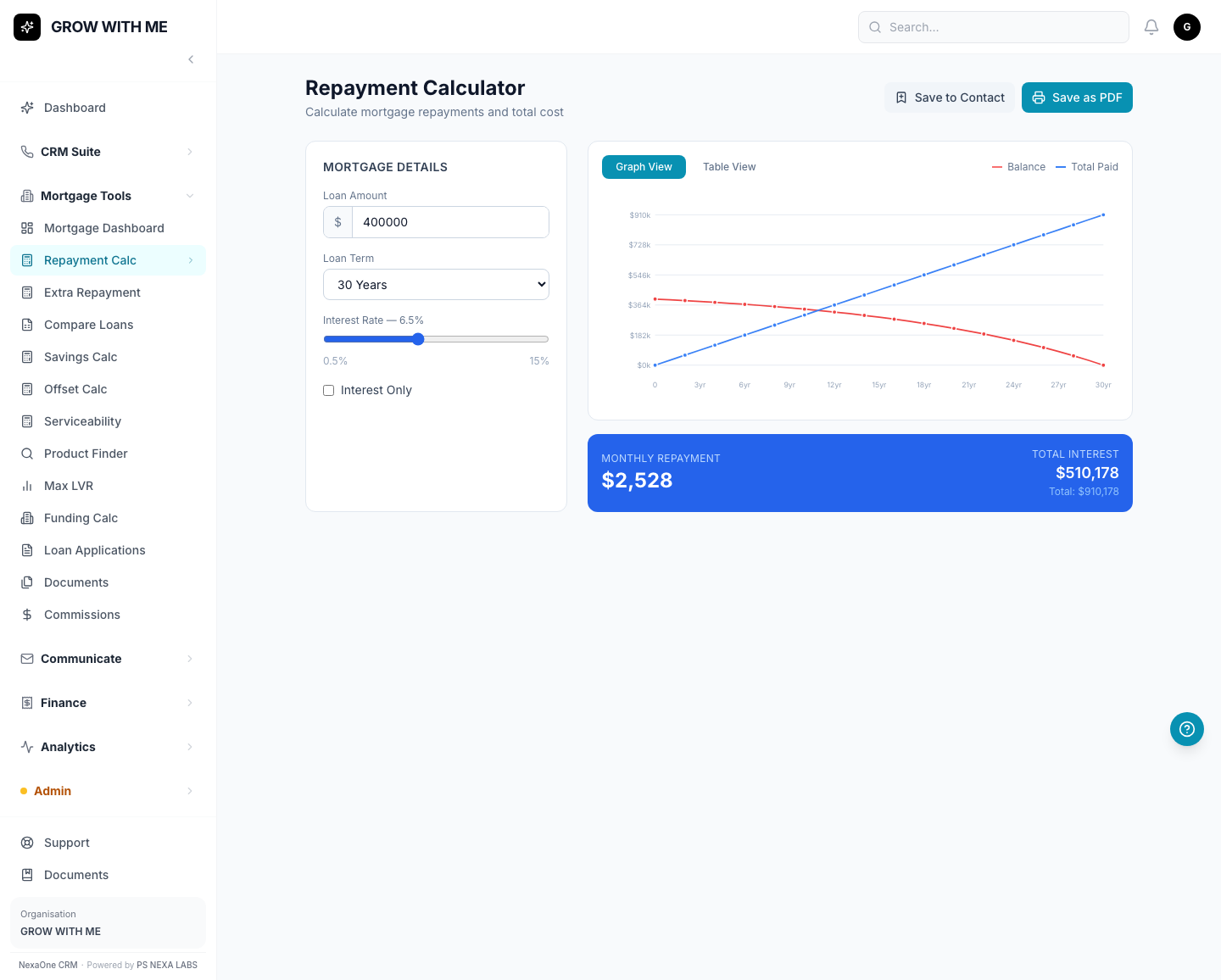
Type in the loan amount, the number of years, and the interest rate — the monthly repayment appears straight away, along with a simple graph.
Example: Serviceability Calculator
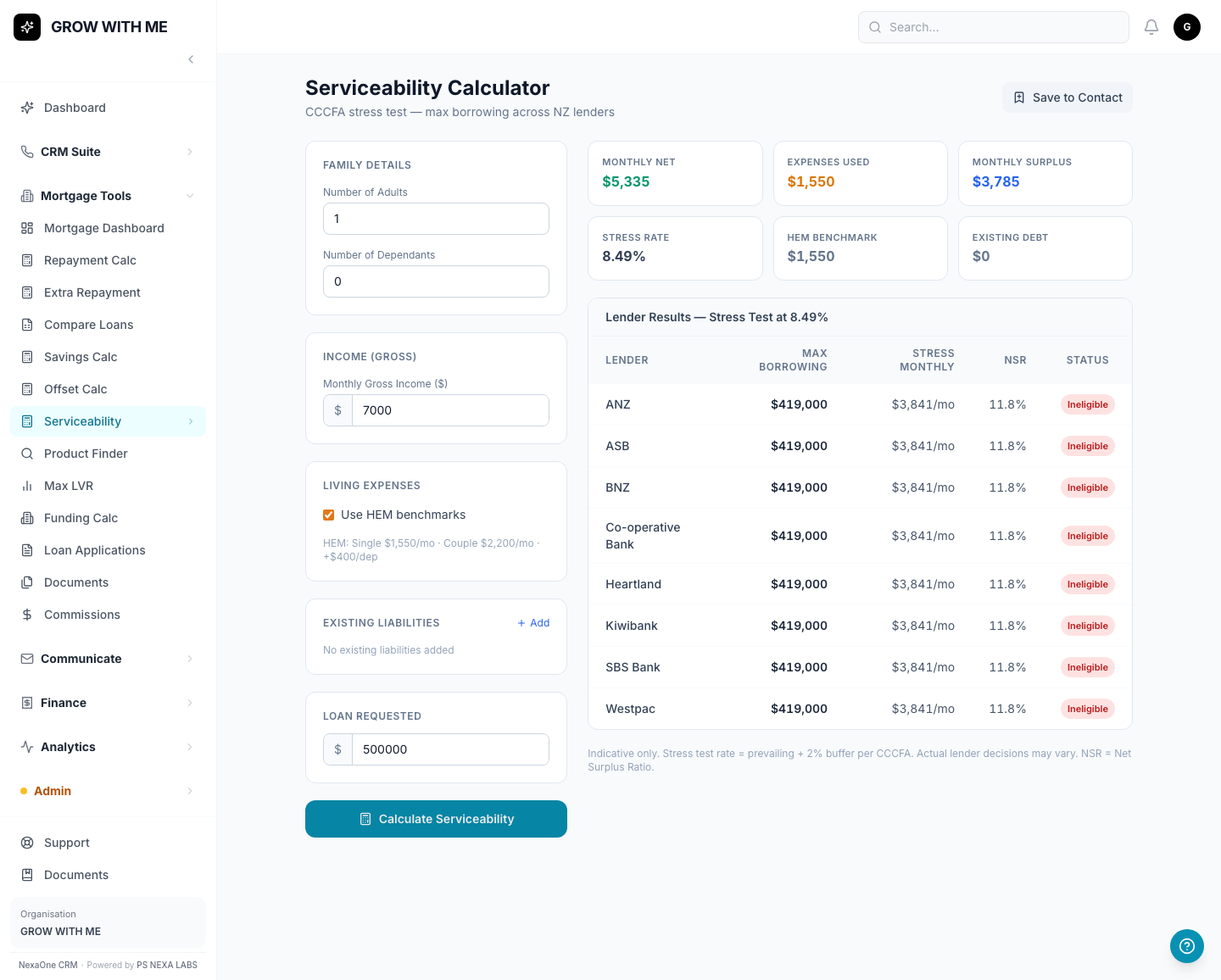
Type in the client's income and expenses, click Calculate, and you'll see the most each lender would likely be willing to lend them.
If a calculator shows every lender as "Ineligible": that's not a mistake — it means the loan amount the client wants is more than what they can realistically afford, based on what you entered. Try a smaller loan amount, or check their income and expenses again.
If Product Finder or Max LVR shows no results: your organisation hasn't added any lenders yet — see Loan Admin below.
None of these calculators save anything by themselves, unless you use a "Save" button on the page.
2. Loan Applications
What is a Loan Application?
A client's home loan, tracked from the moment they apply through to the day their loan settles.
Where do I find it?
Click Mortgage Tools, then Loan Applications.
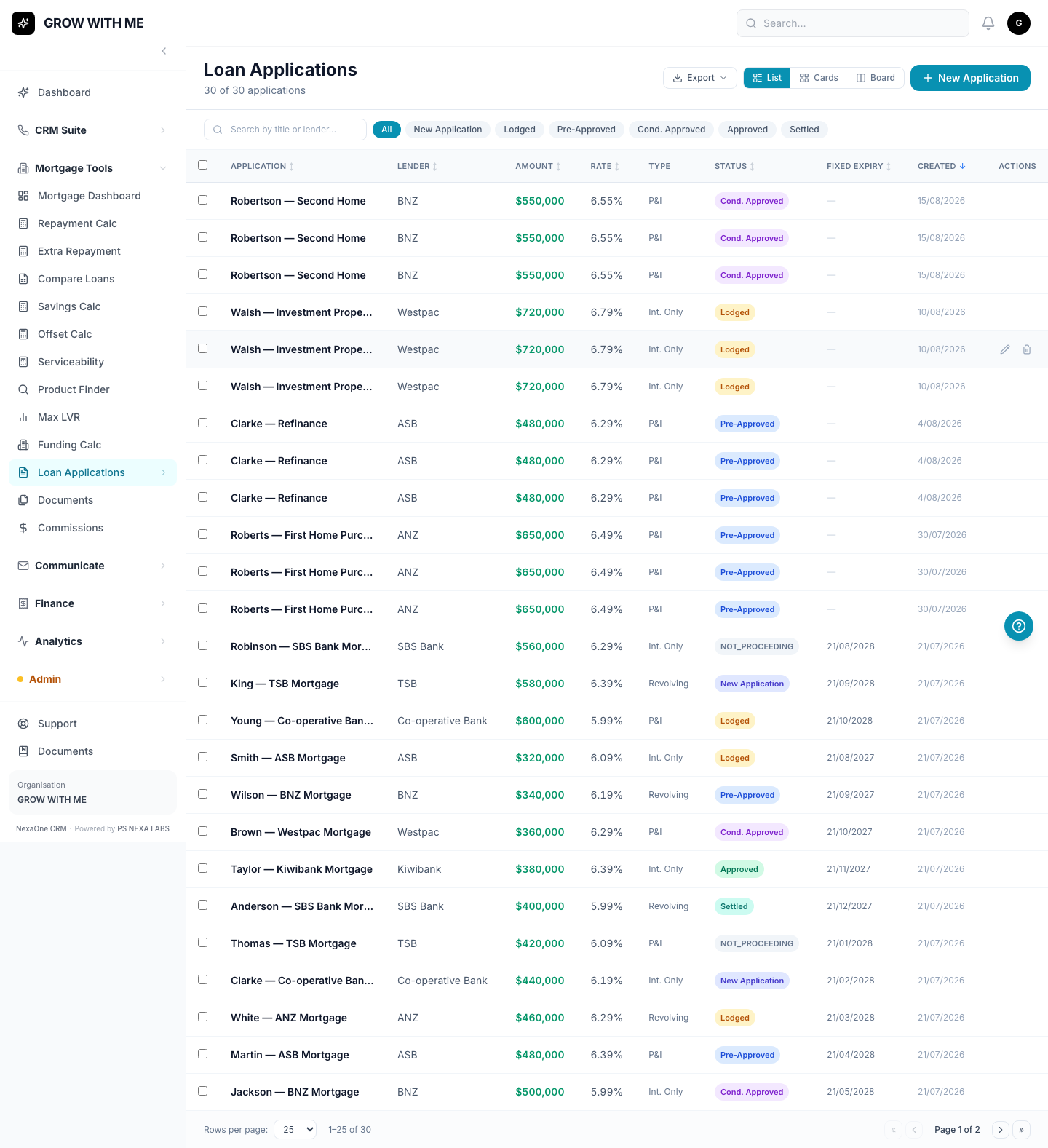
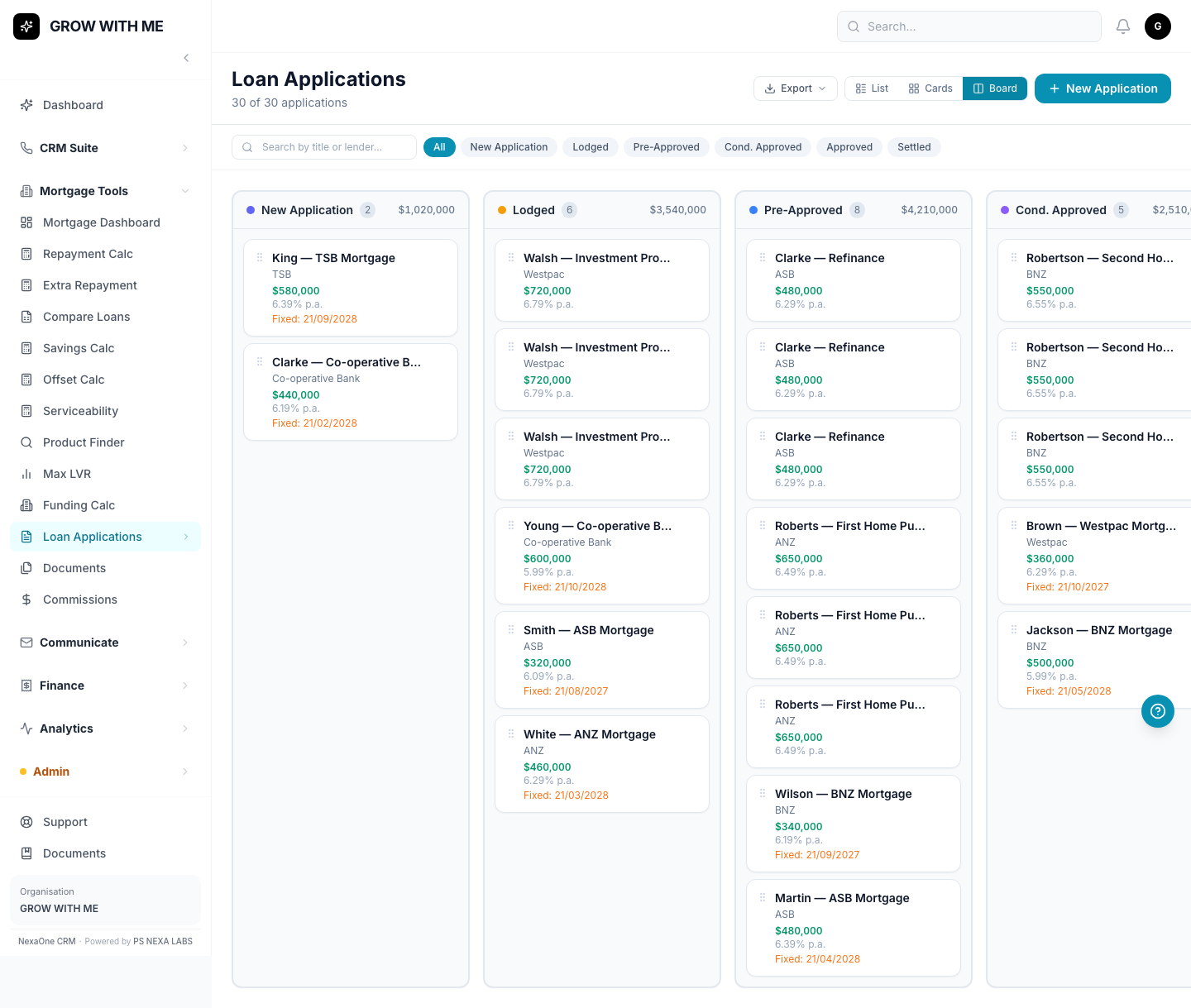
You can also view these as a board, with each application sitting in a column for its current stage:
How do I add a new one?
- Click + New Application.
- Fill in the lender, loan amount, interest rate, and other details.
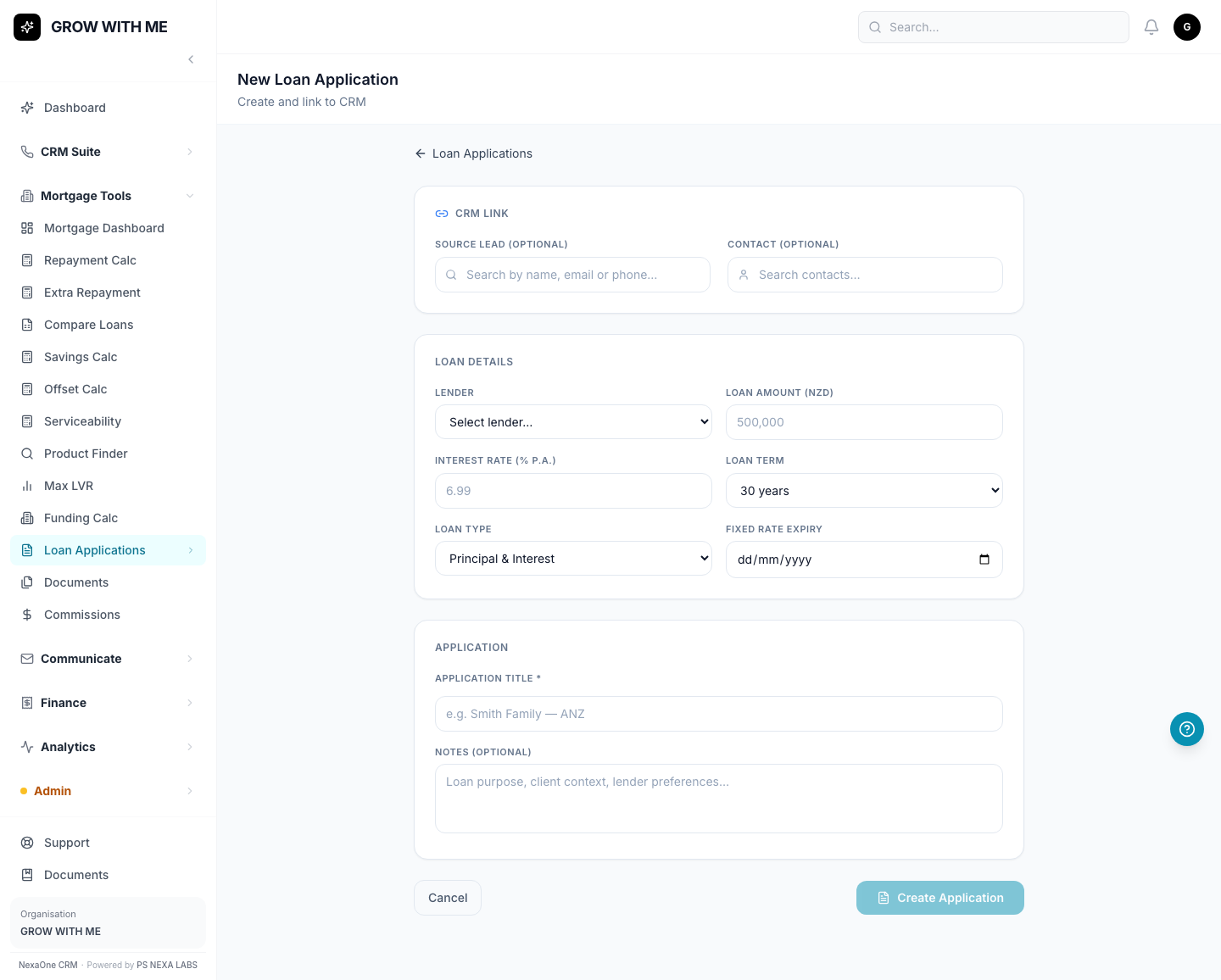
- Save it.
Looking at one application's details
Click on any application to see everything about it in one place — the loan details, any co-borrowers, the property being used as security, conditions from the lender, and any documents attached.
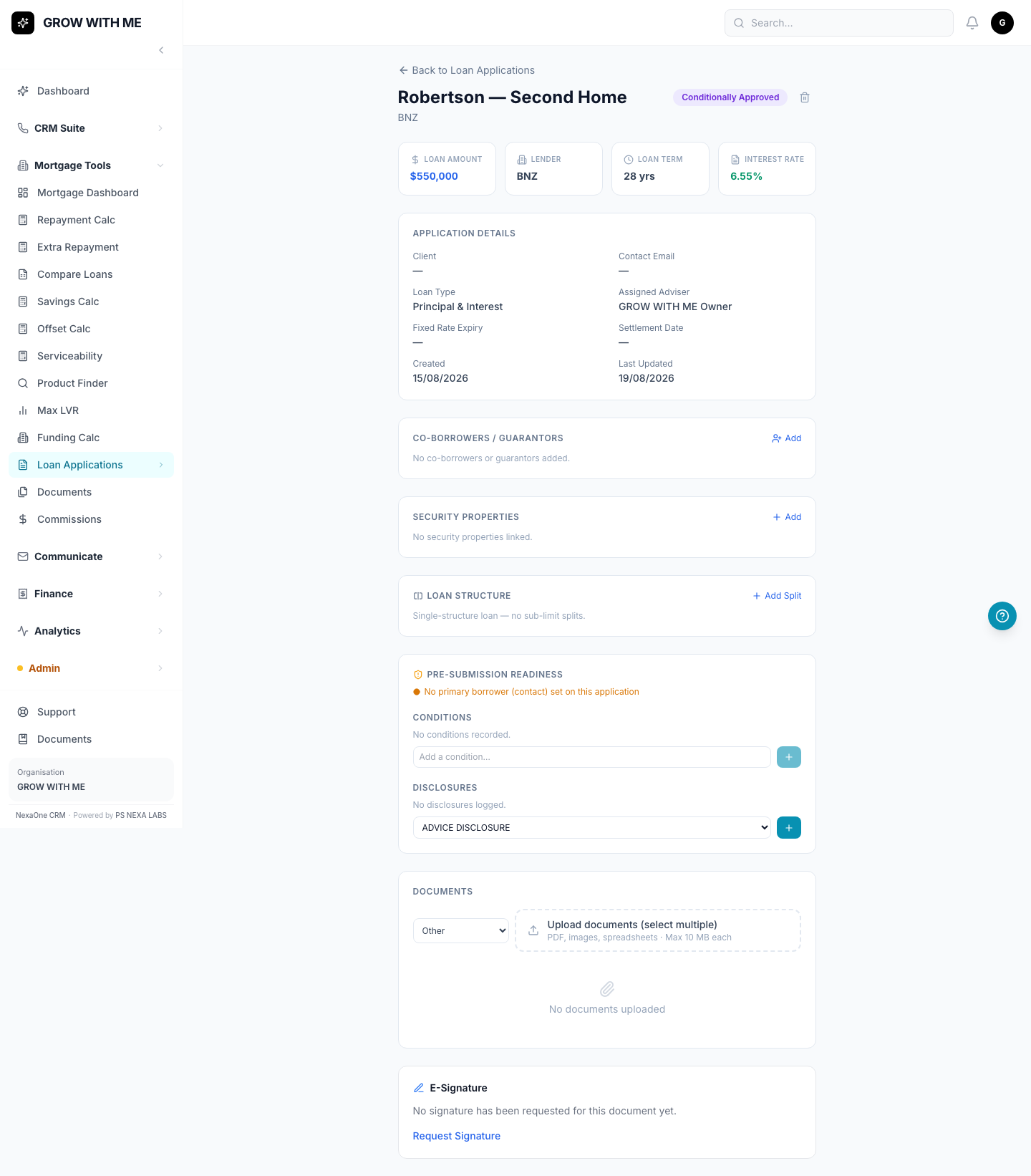
Please note: once something is added here (like a co-borrower or a condition), there's currently no way to remove it — only to delete the whole application. Double-check details before adding them.
3. Documents
What is this for?
A single list showing every file that's been uploaded against any loan application — handy for finding something quickly without opening each application one by one.
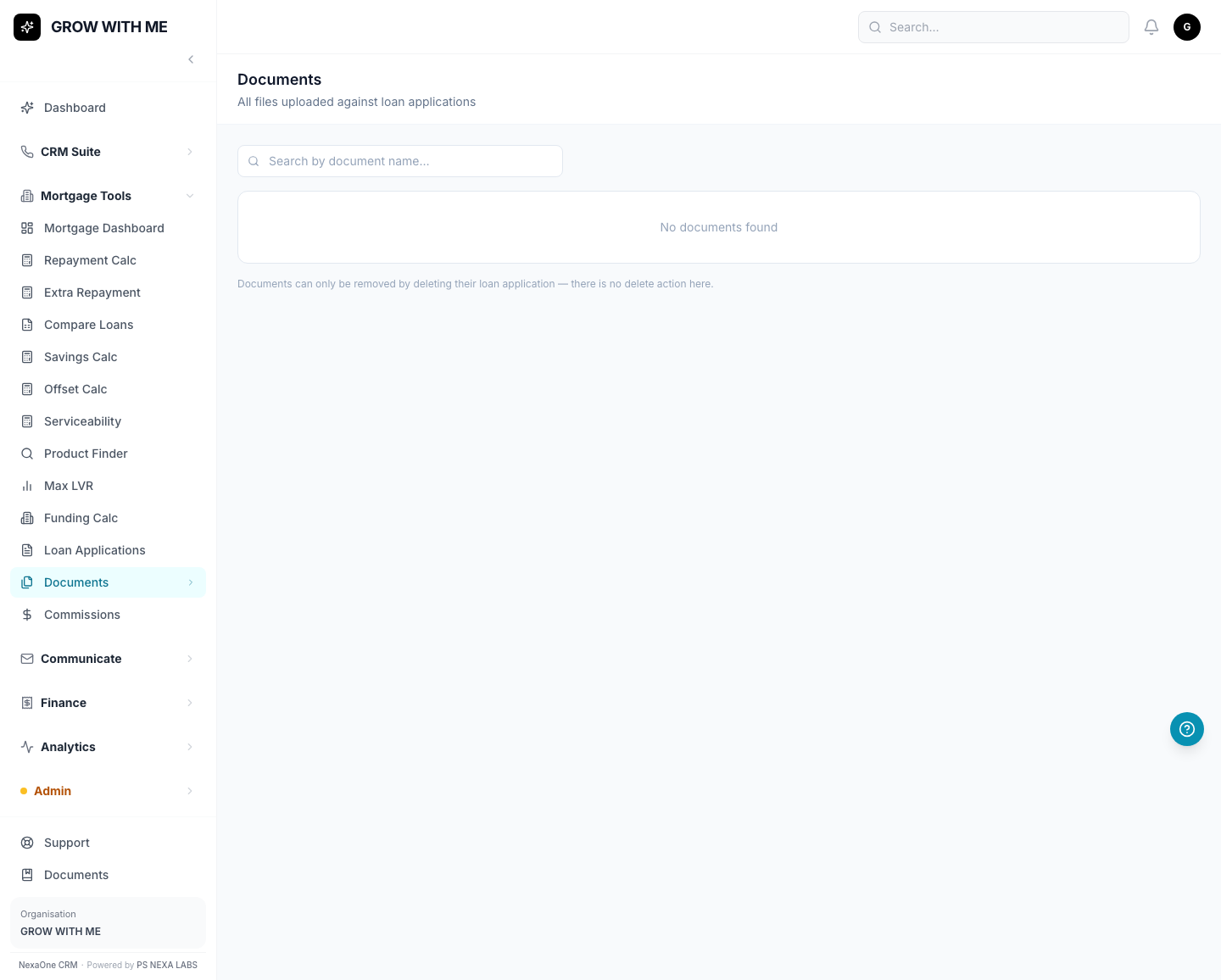
Please note: you can't delete a single file from this list. Files can only be removed by deleting the whole loan application they belong to.
4. Follow-Ups
What is this for?
A worklist reminding you to check in with clients — split into tabs for fixed-rate expiries, pre-approval expiries, birthdays, yearly reviews, and more.
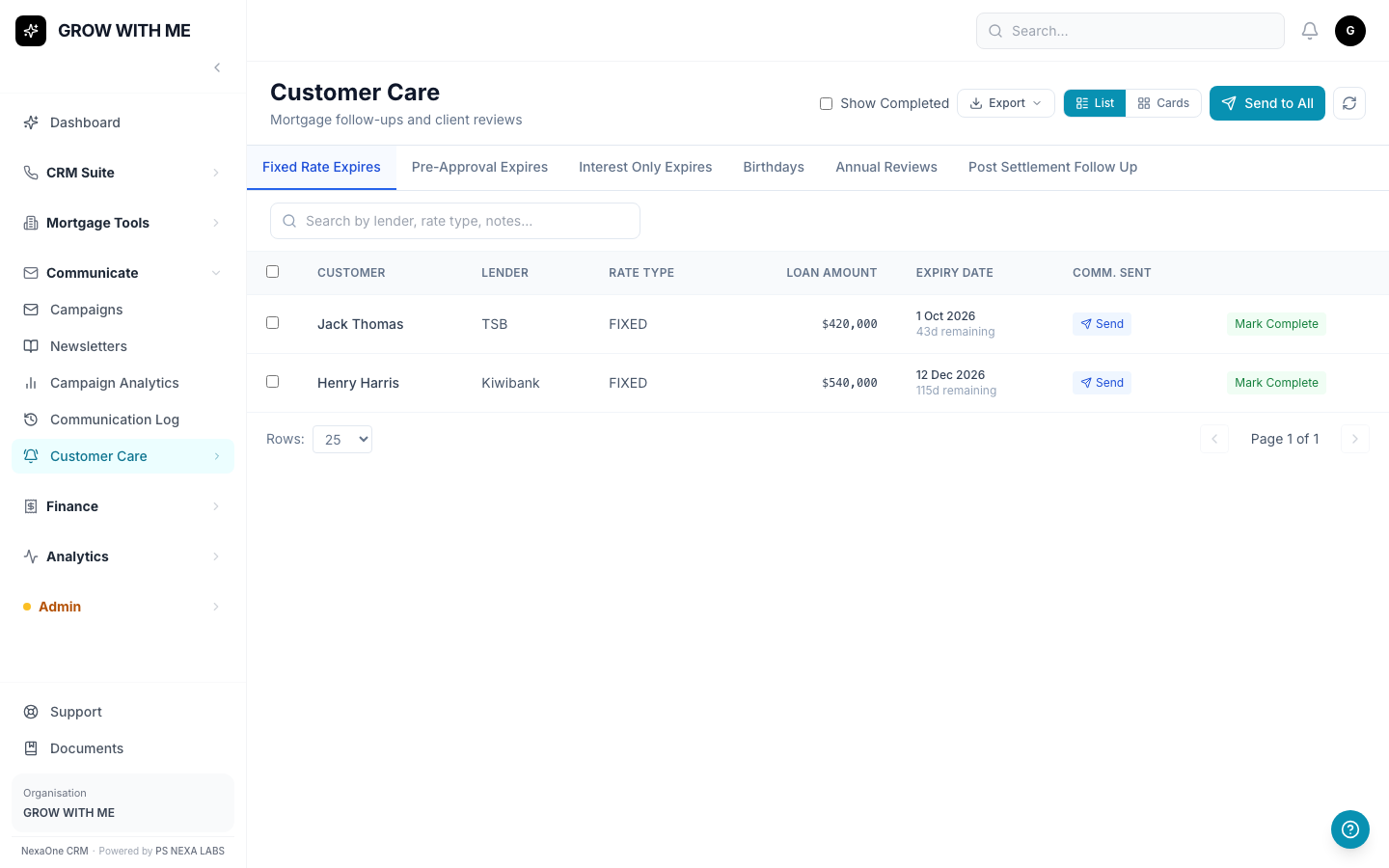
Most of these reminders appear here automatically — for example, when a loan settles, a "check in after settlement" reminder gets added by itself 90 days later.
How do I use it?
Tick the clients you want to contact, then click Send to send them a template email. Once you've dealt with someone, click Mark Complete.
5. Loan Admin
What is this for?
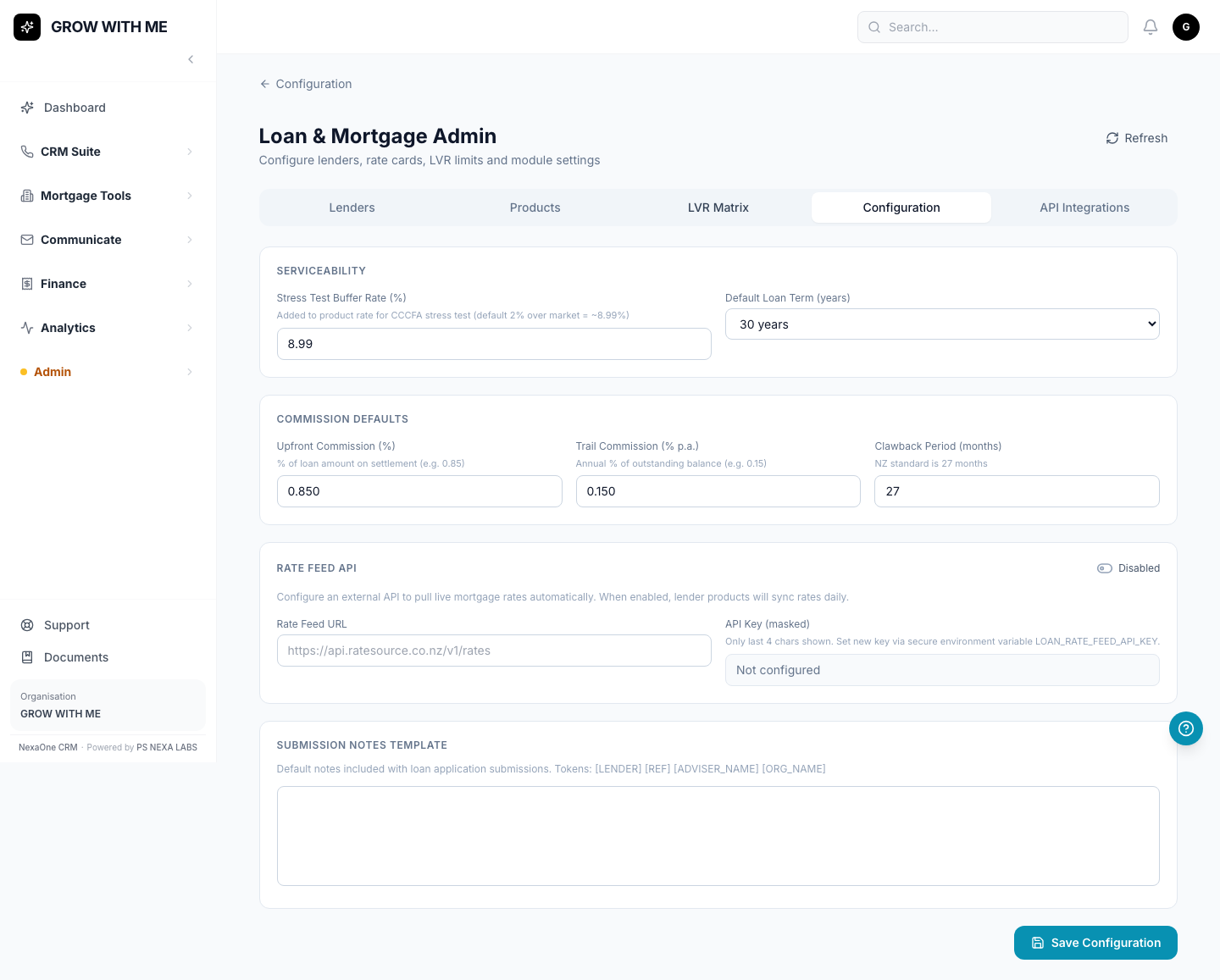
Where you set up the lenders, loan products, and rates that the calculators and Loan Applications screen use.
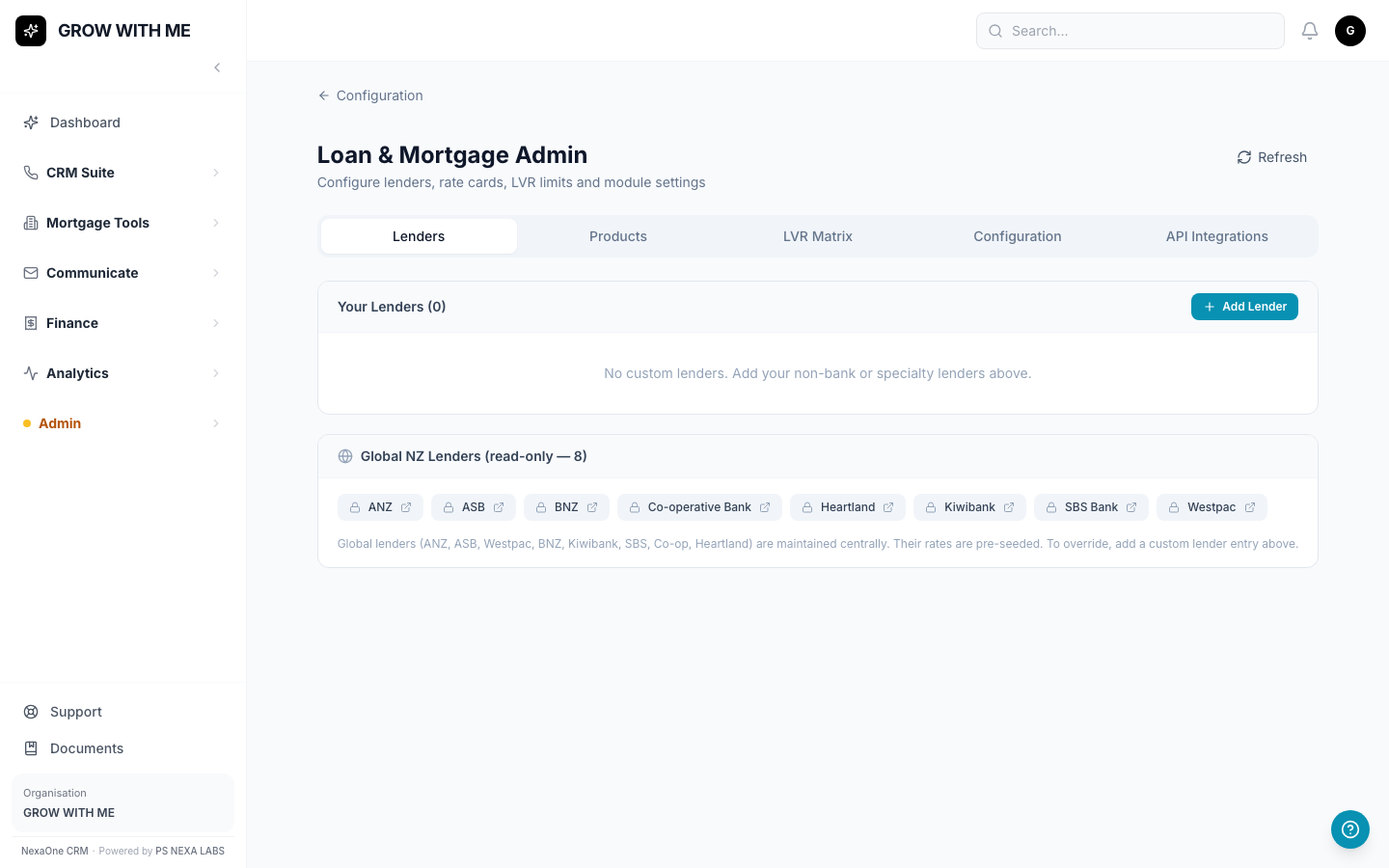
There are five tabs: Lenders, Products, LVR Matrix, Configuration, and API Integrations.
If Product Finder or Max LVR come back empty for you, this is the page to check — add a lender first, then add its products or LVR limits.
Common Questions
Where's the Mortgage Dashboard, and can I trust its numbers? Click Mortgage Tools → Mortgage Dashboard for a summary view. Right now, some of its total numbers (like Total Pipeline and Active Applications) can show as $0 even when you have real applications — this is a known issue. For accurate numbers, always check the Loan Applications list itself instead of the dashboard.
Why does a calculator say every lender is "Ineligible"? The loan amount is more than what the client can afford, based on what you entered — not a system error. See Calculators above.
Why does Product Finder or Max LVR show nothing? No lenders or products have been set up yet — see Loan Admin.
Where do the reminders under Follow-Ups come from? Most appear automatically, for example when a fixed rate is about to end, or 90 days after a loan settles. You don't need to add them by hand.
I can't find something I'm looking for — what do I do? Most lists have a search box at the top. You can also click on any column title to sort.
I clicked a button and it says "Module Not Enabled." That feature hasn't been switched on for your organisation yet. It's not a mistake on your part — ask your manager or admin if you think you should have access to it.