Membership — Simple Guide
This guide explains the Membership part of the system in plain, everyday language. No technical words. If you can use email, you can use this.
Membership is where you keep track of everyone who has joined your organisation as a member — clubs, associations, and similar groups use it. It has three parts:
- Members — everyone who has joined
- Tiers — the different membership plans you offer (optional)
- Renewals — who's coming up for renewal
1. Members
What is a Member?
Anyone who has joined your organisation — whether they signed up on your website or you added them yourself.
Where do I find it?
Click Membership, then Members, on the left-hand menu.
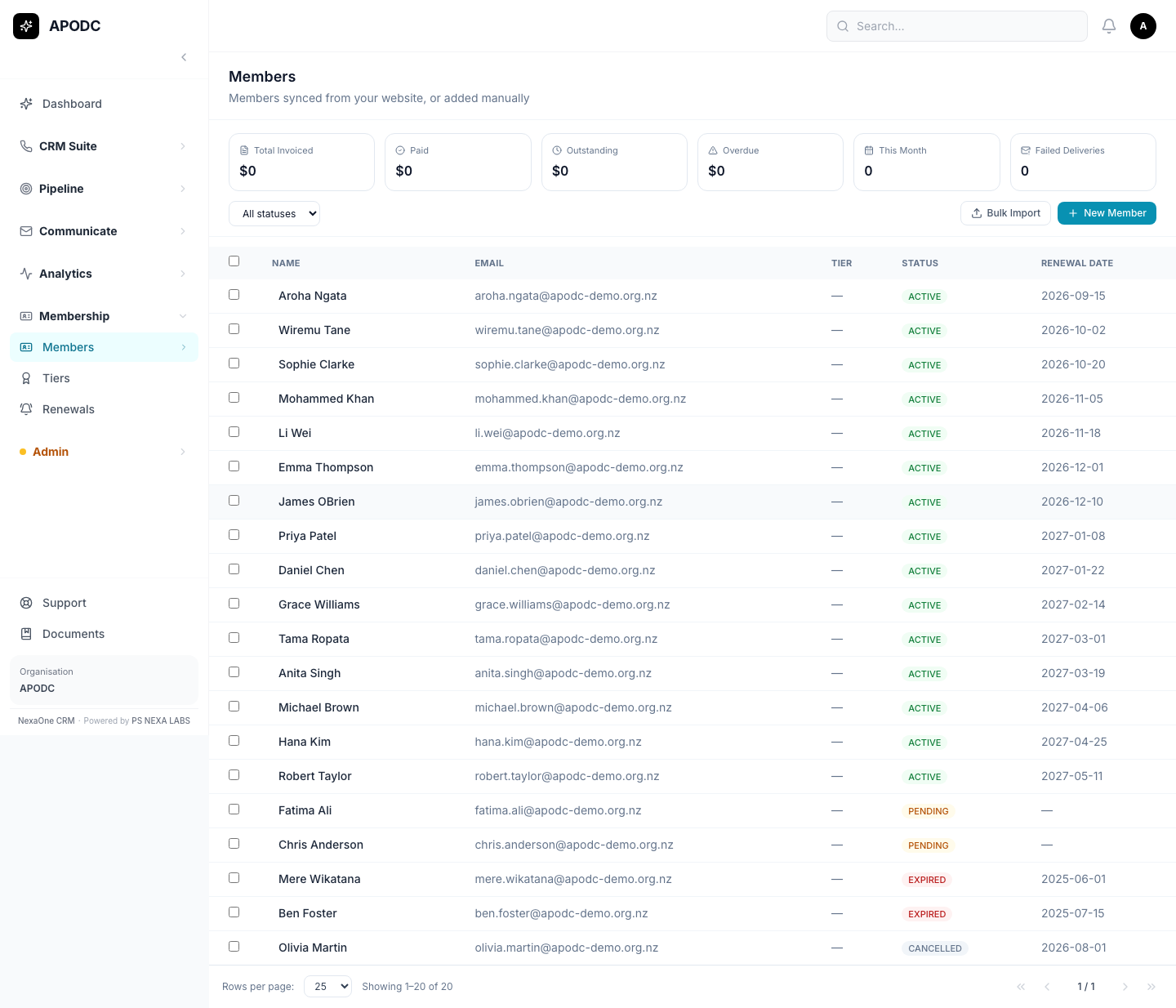
At the top you'll see a quick summary: how much has been invoiced, how much has been paid, and how much is still outstanding.
How do I add a new member?
- Click + New Member.
- Fill in their details.
- Save.
Tip: If you already have a long list of members somewhere else (like a spreadsheet), don't add them one by one — click Bulk Import instead and upload them all at once.
Looking at one member's details
Click on anyone's name to open their page.
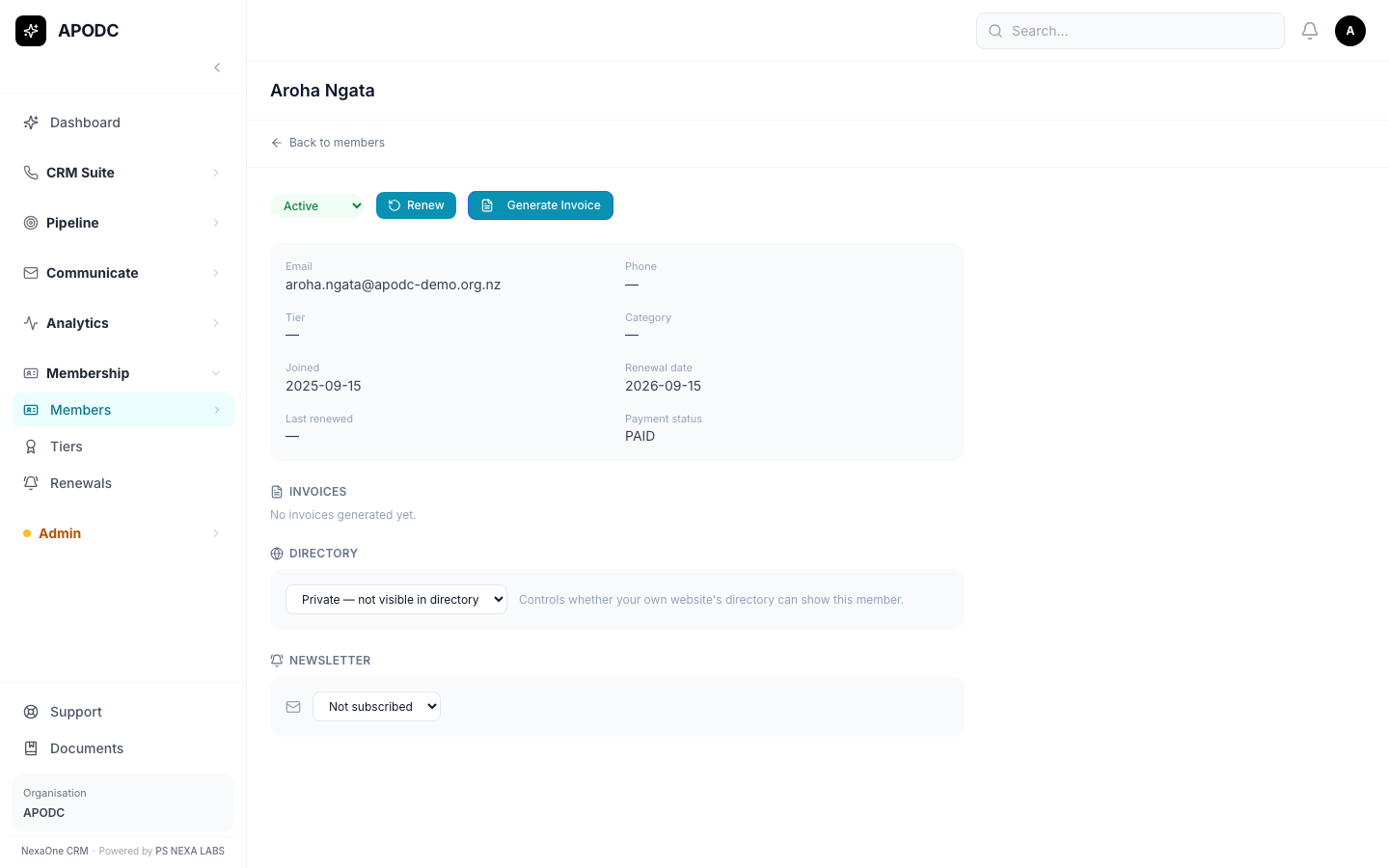
Here you can:
- See and change their membership status (Active, Pending, Expired, or Cancelled)
- Click Renew to renew their membership
- Click Generate Invoice to bill them
- Turn on or off whether they appear in your public member directory
- Turn their newsletter subscription on or off
2. Tiers
What is a Tier?
A membership plan — for example, "Standard" or "Corporate" — with its own price. Tiers are completely optional. Plenty of organisations run perfectly well without setting up any tiers at all, so don't feel you need to add one.
Where do I find it?
Click Membership, then Tiers.
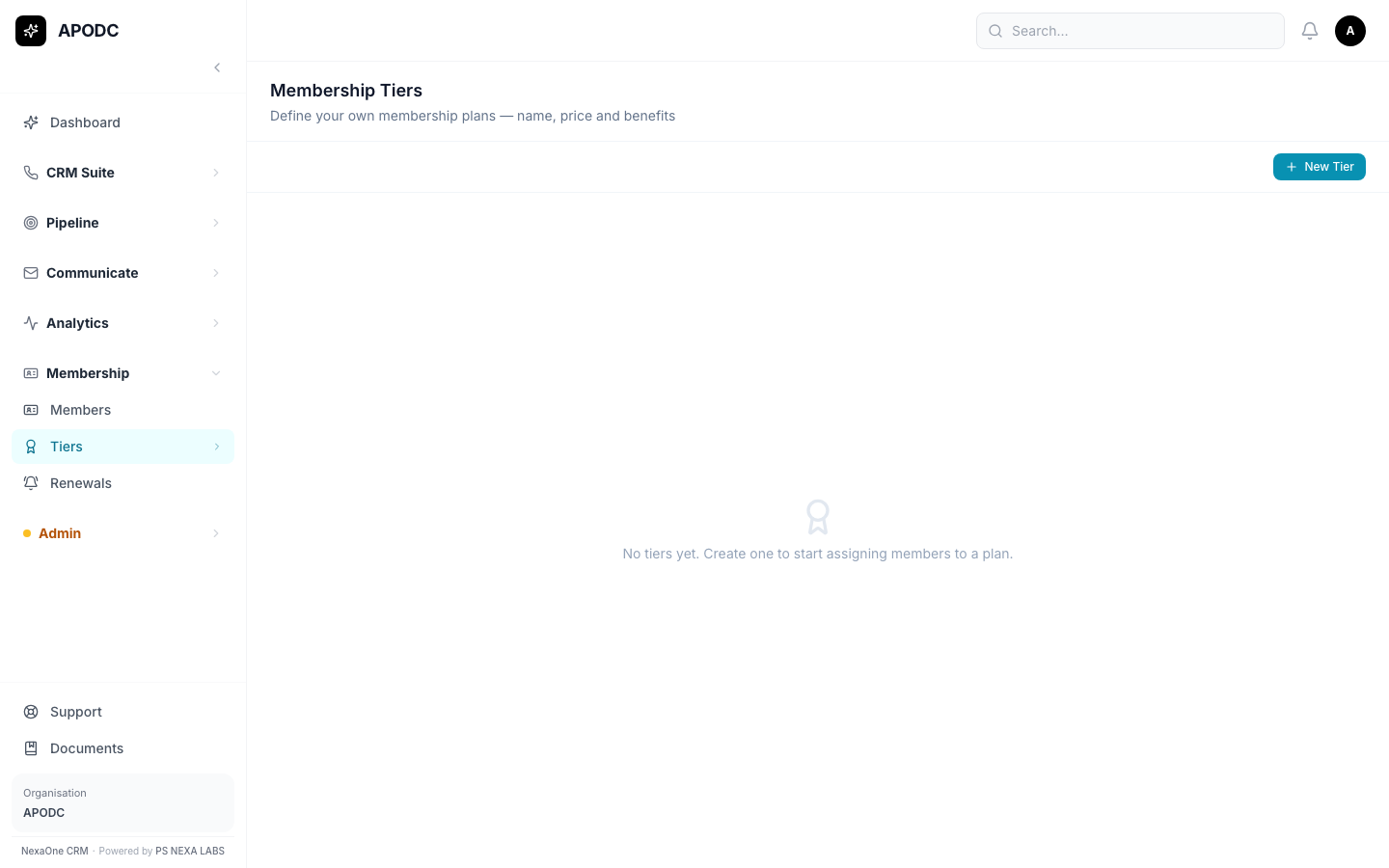
How do I add a tier?
- Click + New Tier.
- Give it a name and a price.
- Save.
Once you've created a tier, you can pick it when adding or editing a member.
3. Renewals
What is this for?
A simple list showing which members are coming up for renewal soon, and which ones are overdue.
Where do I find it?
Click Membership, then Renewals.
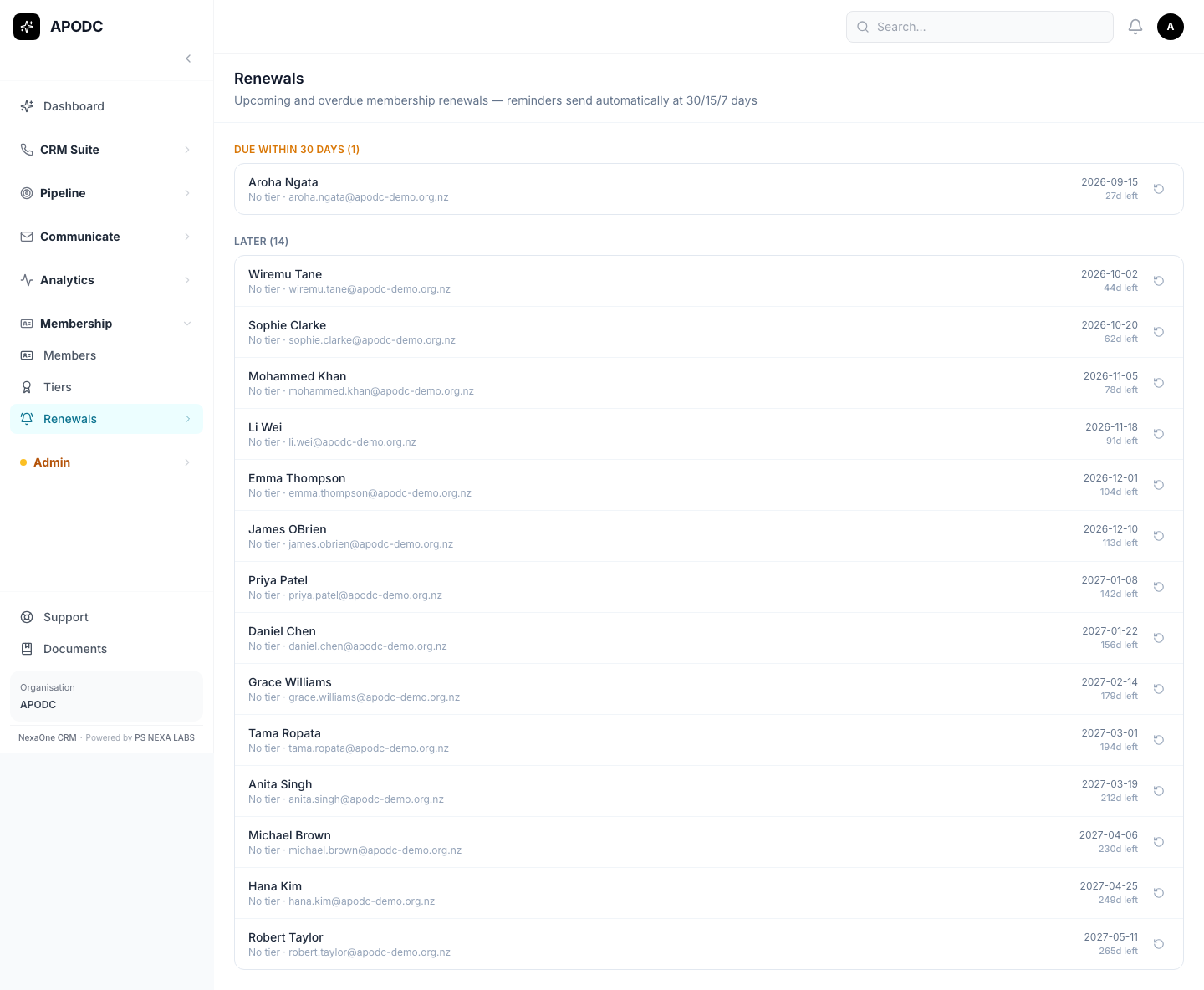
Members are grouped into "Due within 30 days" and "Later", so you can see straight away who needs your attention first. Reminders are sent to members automatically as their renewal date gets closer — you don't need to chase them by hand.
Common Questions
Do I have to set up Tiers before I can add members? No. Tiers are optional — you can add members with no tier at all, and add tiers later if you decide you want them.
Where do new members come from? Either you add them yourself with + New Member, you upload a list with Bulk Import, or — if your website is connected — new sign-ups on your website can come through automatically.
How do I bill a member? Open their page and click Generate Invoice.
I can't find something I'm looking for — what do I do? Try the search box at the top of the Members list. You can also click on any column title to sort.
I clicked a button and it says "Module Not Enabled." That feature hasn't been switched on for your organisation yet. It's not a mistake on your part — ask your manager or admin if you think you should have access to it.