HR — Simple Guide
This guide explains the HR part of the system in plain, everyday language. No technical words. If you can use email, you can use this.
HR is where you manage your staff — their details, leave, pay, hiring, and more. It has these parts:
- Employees — your staff's details
- Leave — time-off requests
- Payroll — paying your staff
- Recruitment — hiring new people
- Attendance — clocking in and out
- Performance Reviews — staff reviews
- HR Cases — private, sensitive HR matters
Every part of HR can be switched on or off separately for your organisation, so you might not see all seven — that's normal.
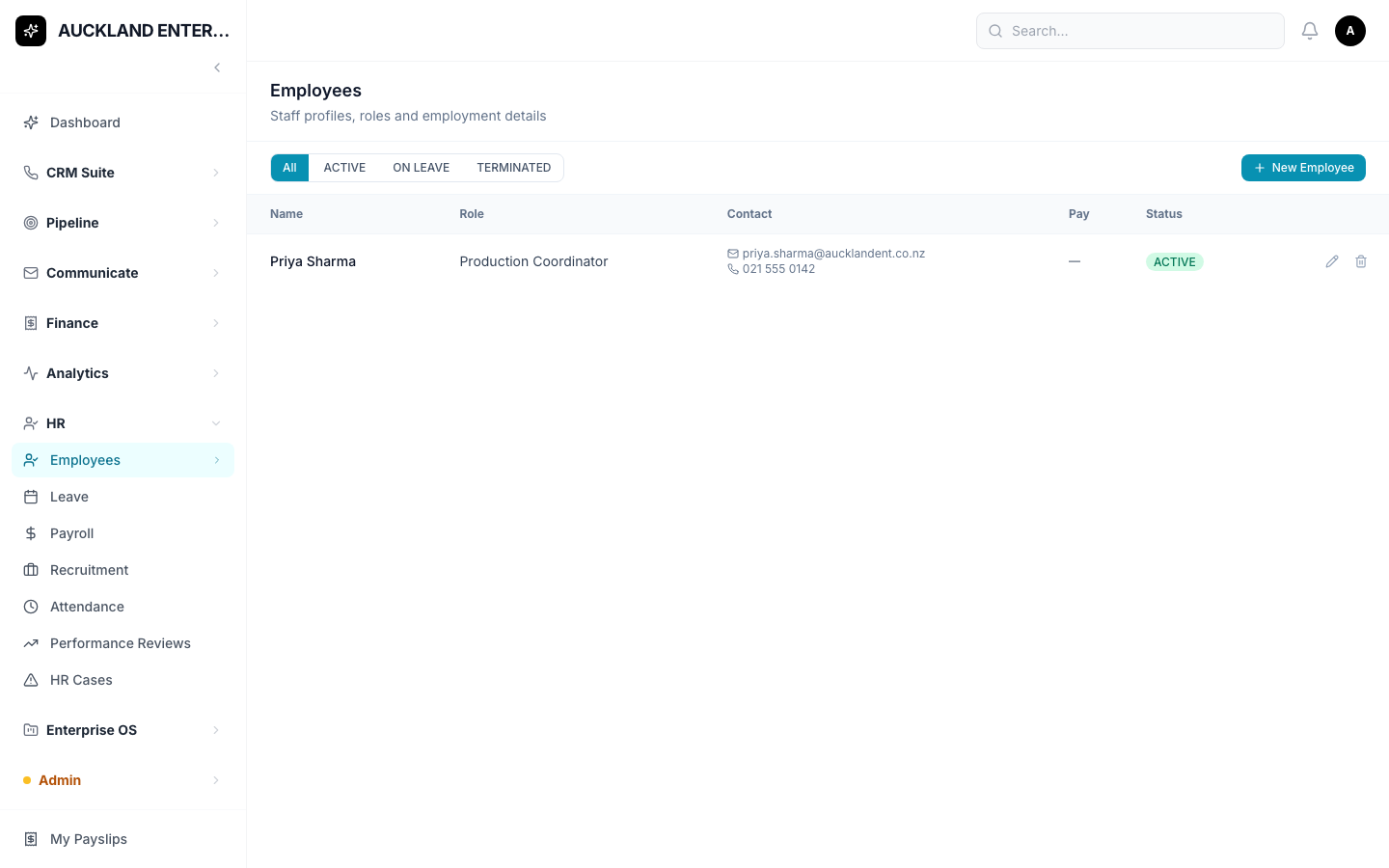
1. Employees
Where do I find it?
Click HR, then Employees.
How do I add someone?
- Click + Add Employee.
- Fill in their first and last name — these are the only things you must fill in.
- Add anything else you know: email, phone, job title, department, employment type, start date, pay details.
- Save.
2. Leave
What is this for?
Requesting and approving time off.
Where do I find it?
Click HR, then Leave.
How do I request leave?
- Click New Request.
- Pick the employee, the type of leave, and the start and end dates.
- Add a reason if you like.
- Save.
A manager can then approve or decline the request from this same screen.
3. Payroll
What is this for?
Running a pay cycle for your staff.
Where do I find it?
Click HR, then Payroll.
How do I run one?
- Click New Pay Run.
- Set the pay period and the payment date.
- Save — this creates a draft payslip for every active employee.
- Check the draft figures, then Approve, and finally Mark as Paid.
Please note: the tax figures calculated here are a starting estimate for New Zealand tax rules — always double-check them before finalising a pay run, the system says so itself.
4. Recruitment
What is this for?
Tracking job openings and the people applying for them.
Where do I find it?
Click HR, then Recruitment.
Click on a job posting to see everyone who's applied for it.
5. Attendance
What is this for?
Clocking in and out, and keeping a record of hours worked.
Where do I find it?
Click HR, then Attendance.
Each person clocks themselves in and out from this screen. A manager can then approve the daily records.
Please note: there's currently no button here for a manager to add a missed clock-in on someone else's behalf — if someone forgets to clock in, speak to your admin.
6. Performance Reviews
What is this for?
Running staff performance reviews.
Where do I find it?
Click HR, then Performance Reviews.
Click New Review to start one, then click into it to add ratings and comments and update its status as it progresses.
7. HR Cases
What is this for?
A private space for sensitive HR matters — you'll only see cases that are your own, assigned to you, or (if you're an admin) all of them.
Where do I find it?
Click HR, then HR Cases.
Click Raise Case to log a new one.
Common Questions
Can I trust the tax numbers on a pay run? Treat them as a starting estimate, not a final answer — always review before approving, as the system itself recommends.
Someone forgot to clock in — how do I fix it? There's no button for this on the Attendance screen itself — ask your admin, who has another way to add it.
I can't find something I'm looking for — what do I do? Try the search box on whichever screen you're on.
I clicked a button and it says "Module Not Enabled." That feature hasn't been switched on for your organisation yet. It's not a mistake on your part — ask your manager or admin if you think you should have access to it.