Design Studio — Simple Guide
This guide explains the Design Studio part of the system in plain, everyday language. No technical words. If you can use email, you can use this.
Design Studio is where you design the look of your emails, newsletters, and social media posts — a drag-and-drop tool, no design skills needed.
Where do I find it?
Click Communicate, then Design Studio.
What can I design?
When you start a new design, you'll be asked what you're making:
- Newsletter
- Promotion
- Social Post
- Story / Reel
- Carousel
- Custom Size
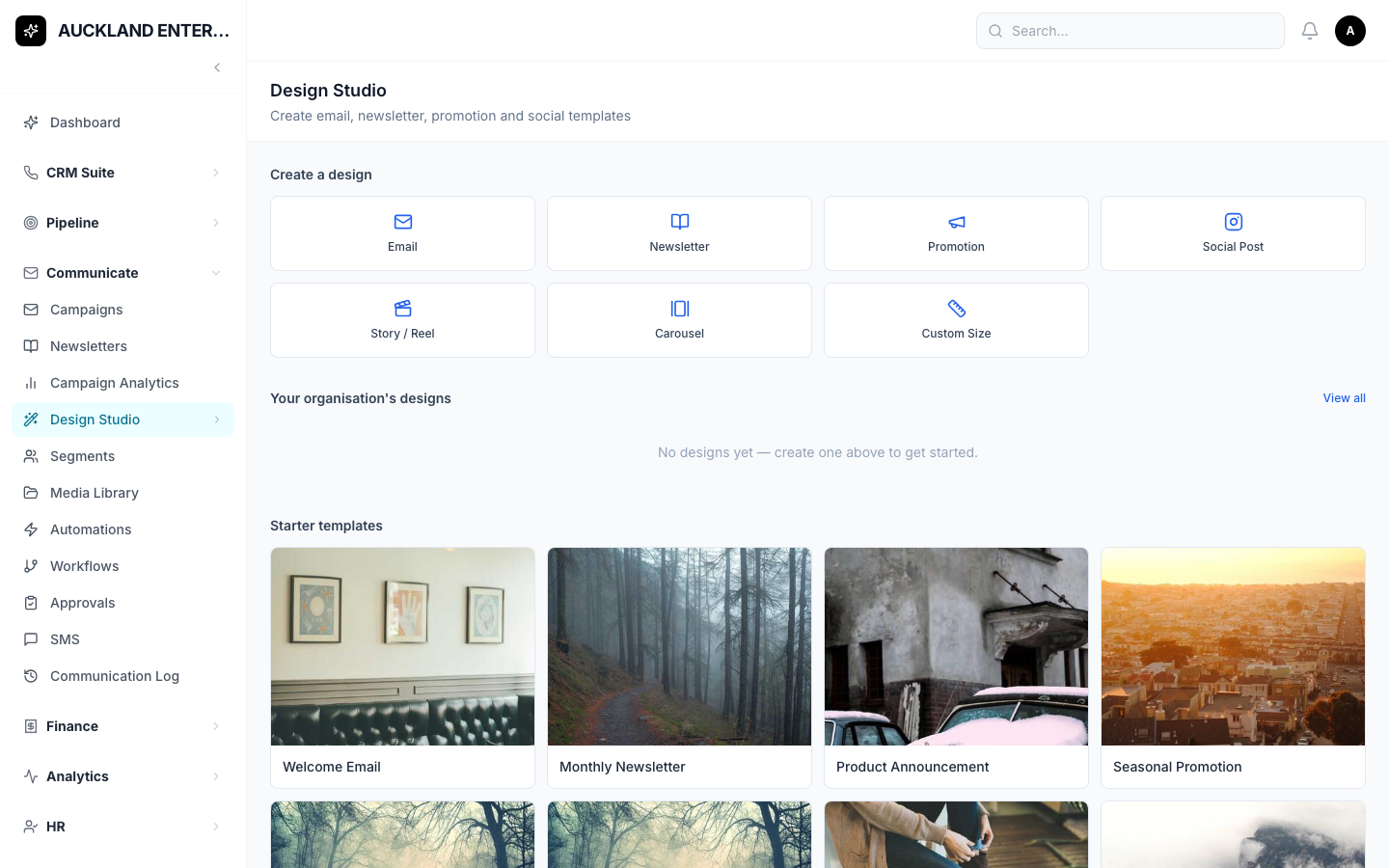
How do I build one?
- Pick a type from the list above.
- Drag pieces onto your design — a heading, some text, an image, a button, a divider line, columns to arrange things side by side, extra spacing, your logo, social media icons, a card, or a video.
- Click on anything you've added to change its text, colour, or size.
- Your work is saved as you go.
Getting a Design Ready to Use
A design moves through a few stages: Draft, then In Review, then Approved. Only an Approved design is ready to actually use.
⚠ Important: right now, an Approved design only works with Newsletters — you can't yet attach a Design Studio design to a regular Email Campaign. If you're setting up a newsletter, this is exactly what you want; for anything else, you'll still need to use a Template from Communicate → Templates instead.
Your Own Images
Click Assets to upload and manage the images you use in your designs. This is separate from the main Media Library menu item — think of it as your own personal image folder just for Design Studio.
Common Questions
I approved a design but can't find it when creating a Campaign. That's expected — approved designs only show up when creating a Newsletter, not a regular Campaign. See the warning above.
Can I preview what my design looks like on a phone? Not currently — there's no phone/desktop preview switch in the editor today.
I can't find something I'm looking for — what do I do? Try the search box on whichever screen you're on.
I clicked a button and it says "Module Not Enabled." That feature hasn't been switched on for your organisation yet. It's not a mistake on your part — ask your manager or admin if you think you should have access to it.