CRM Suite — Simple Guide
This guide explains the CRM Suite part of the system in plain, everyday language. No technical words. If you can use email, you can use this.
CRM Suite is where you keep track of the people you work with, the things you need to do, and the meetings you have. It has five parts:
- Contacts — the people you work with
- Calendar — your meetings
- Tasks — your to-do list
- Referrals — people sent to you, or people you sent to others
- Partners — the businesses you swap referrals with
1. Contacts
What is a Contact?
A Contact is a person you deal with — a client, a supplier, anyone. Once someone is a Contact, you can see all their information in one place.
Where do I find it?
Click Contacts on the left-hand menu.
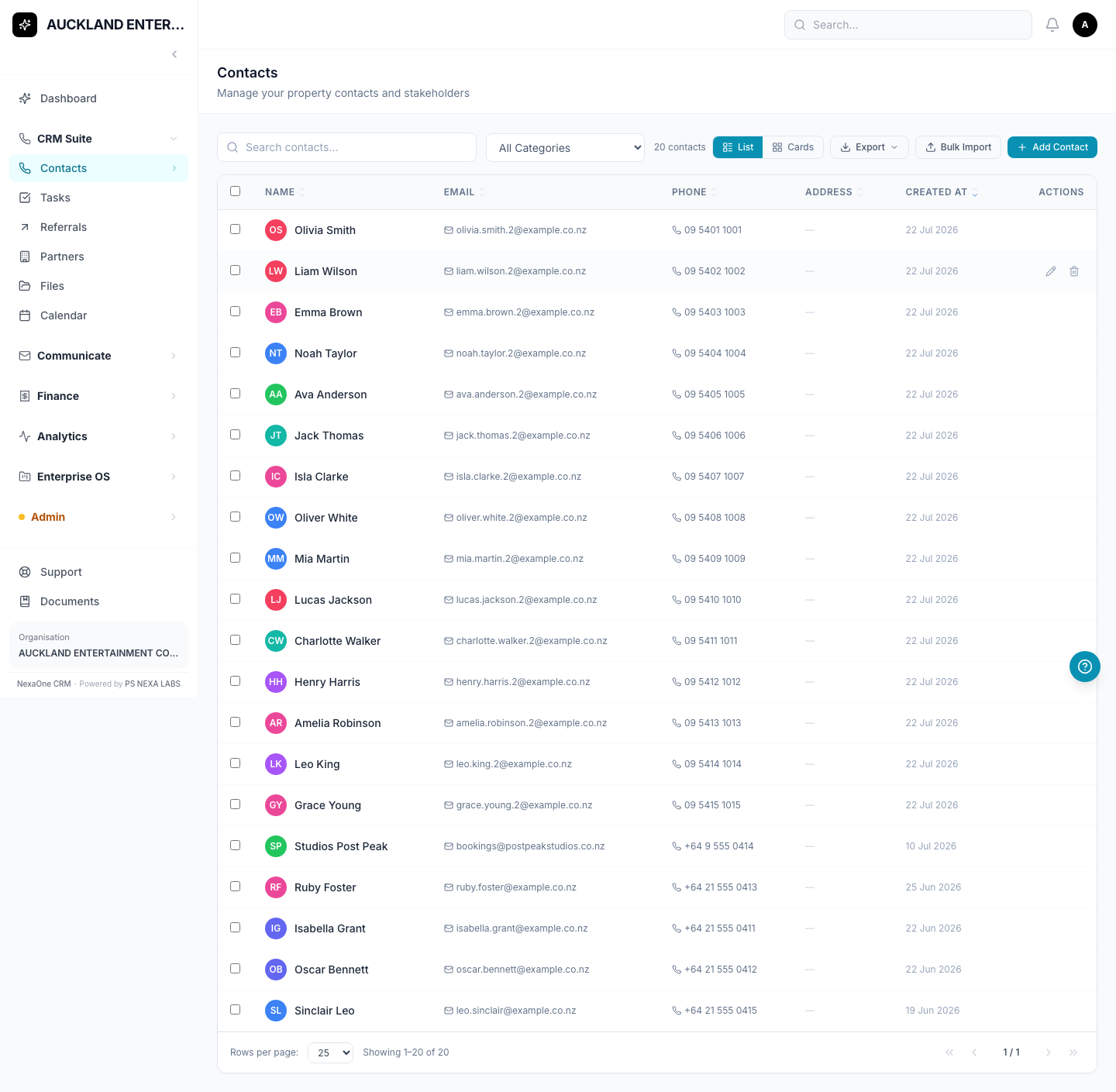
You'll see a list of everyone you've added. You can search for someone by typing their name at the top.
How do I add a new person?
- Click Add Contact (top right of the screen).
- A form pops up with a few tabs at the top: Personal, Contact, Address, Groups & Referral, and Options.
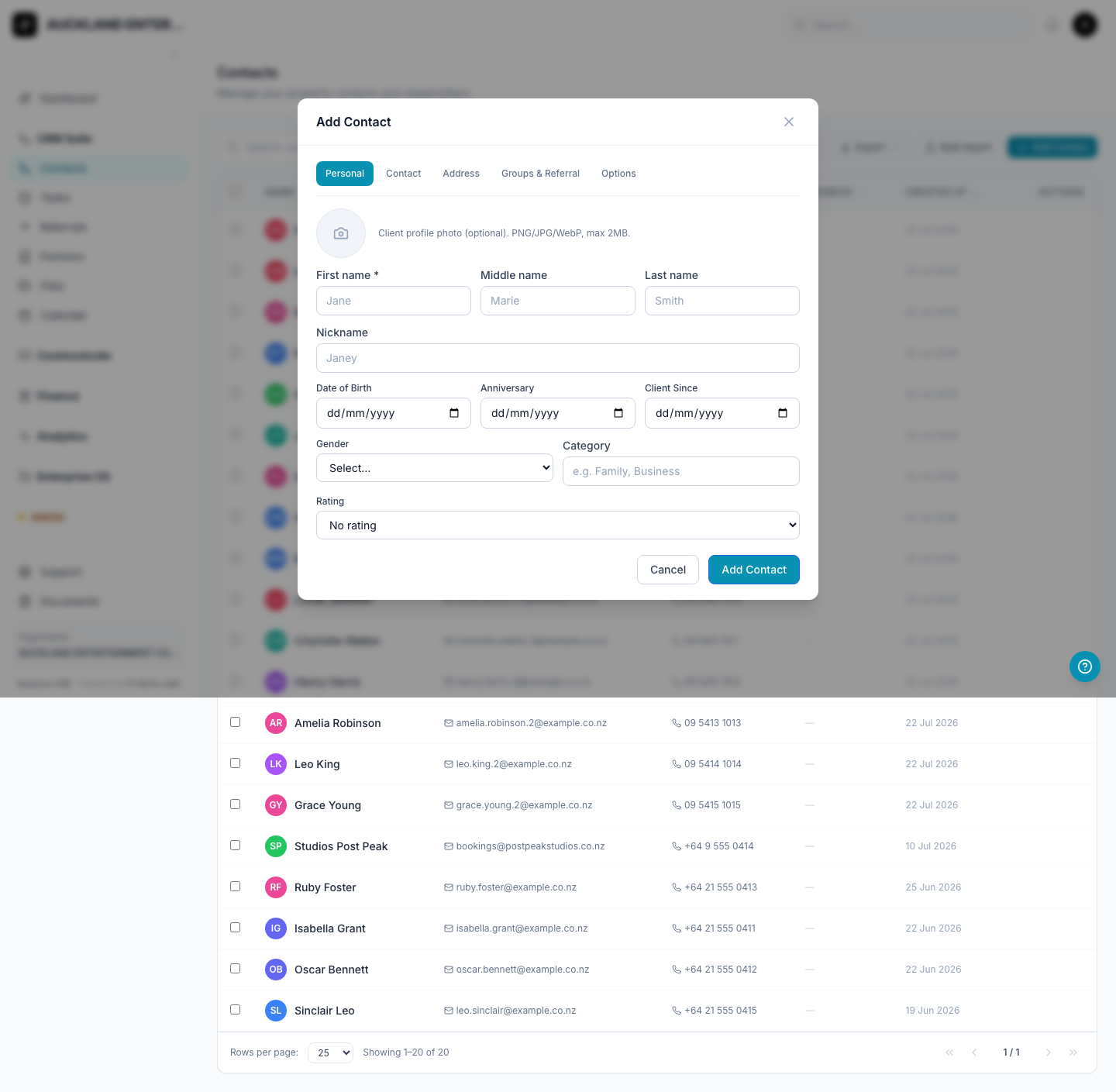
- On the first tab, type the person's First Name — this is the only thing you must fill in. Everything else is optional: last name, date of birth, and so on.
- Click through the other tabs if you want to add an email address, phone number, or home address.
- Click Add Contact to save.
Why bother filling in Date of Birth and Gender if they're optional? They're not just for the record — Date of Birth is used for birthday reminders and in insurance quotes, and Gender is used when calculating insurance rates. Worth adding if you have them.
Tip: If you have a long list of people already written down somewhere (like a spreadsheet), don't add them one by one — see Adding Many People at Once below.
Looking at one person's details
Click on anyone's name in the list to open their page.
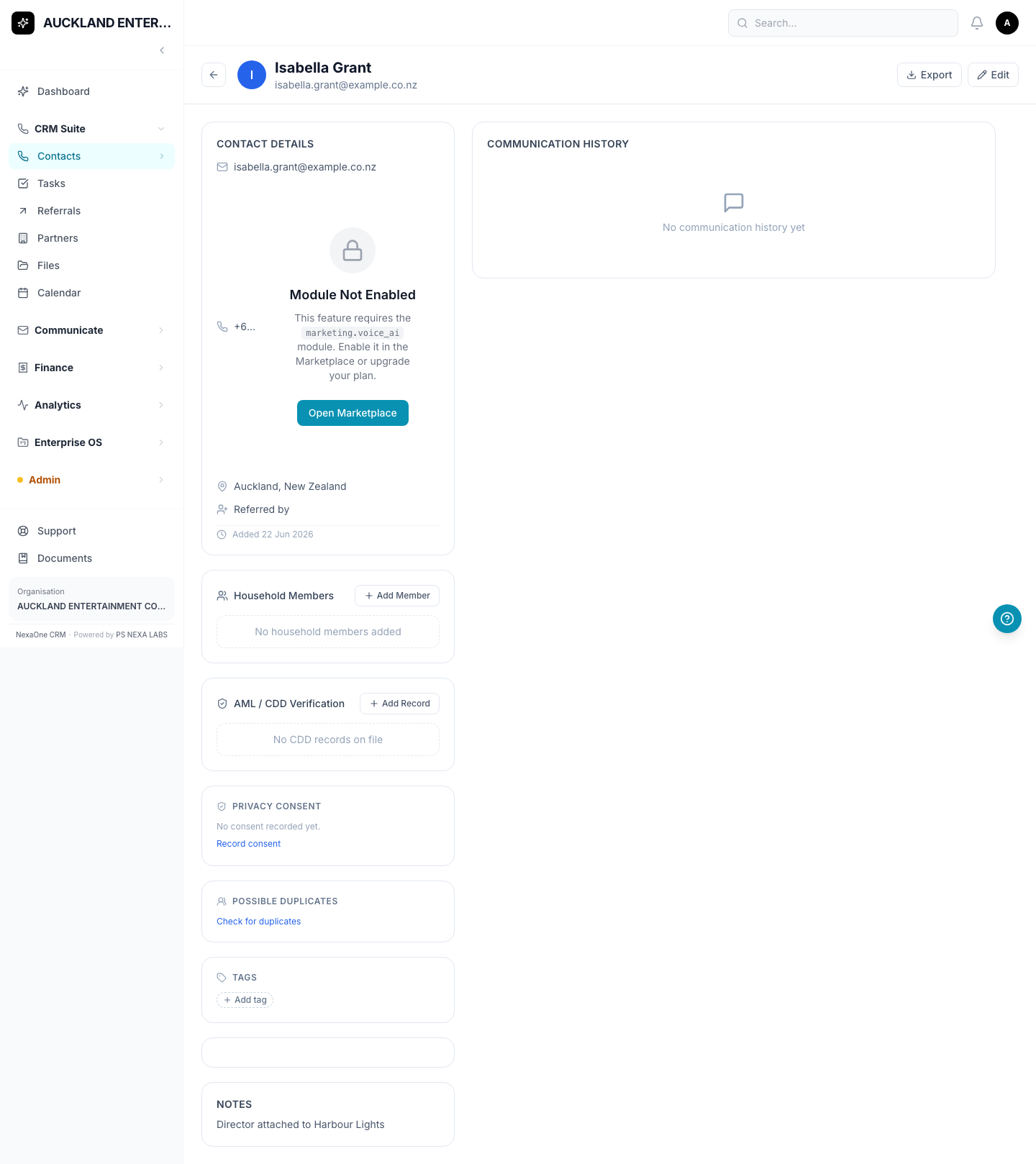
Here you can see and add:
- Their basic details (email, phone, etc.)
- Anyone in their household
- Compliance checks — a place to record ID verification and privacy consent, if your organisation needs to keep that on file
- A Check for duplicates link, in case this person was already added under a slightly different name or email
- Free-form tags, for your own organising
- Notes you've written about them
- Any messages (emails or texts) that have been sent to them — this stays empty until something's actually been sent
Note: You might see a button called Call with AI that's locked with a padlock. That just means this feature isn't switched on for your organisation yet — it's not broken.
Once someone's a Contact, everything else connects to them
Adding a Contact isn't the end point — it's the starting point. Once someone is a Contact, you can create a loan application, an insurance quote, an invoice, or a deal (Opportunity) for them, book a meeting with them, and see every email or text ever sent to them, all from their one page.
Finding someone quickly
Type into the search box at the top of the Contacts list. It searches by name, email, or phone number. You can also click on any column title (like "Name" or "Email") to sort the list.
2. Calendar
What is this for?
The Calendar is where you book meetings.
Where do I find it?
Click Calendar on the left-hand menu.
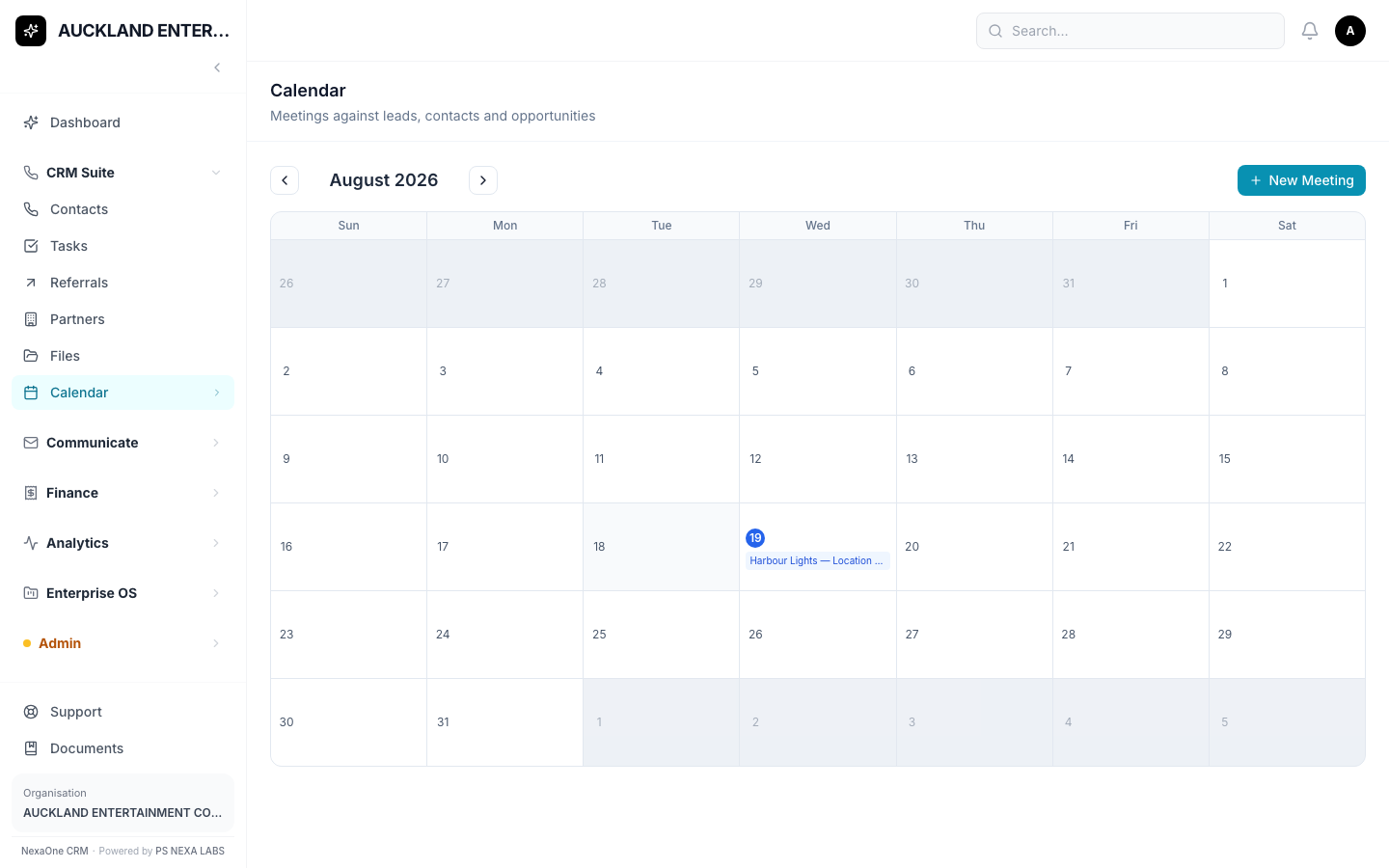
You'll see a normal month view, like any calendar. Any meeting you've booked shows up on its day.
How do I book a meeting?
- Click + New Meeting.
- Fill in the short form: give the meeting a title, pick the date, pick a start and end time, and (if you like) type where it's happening.
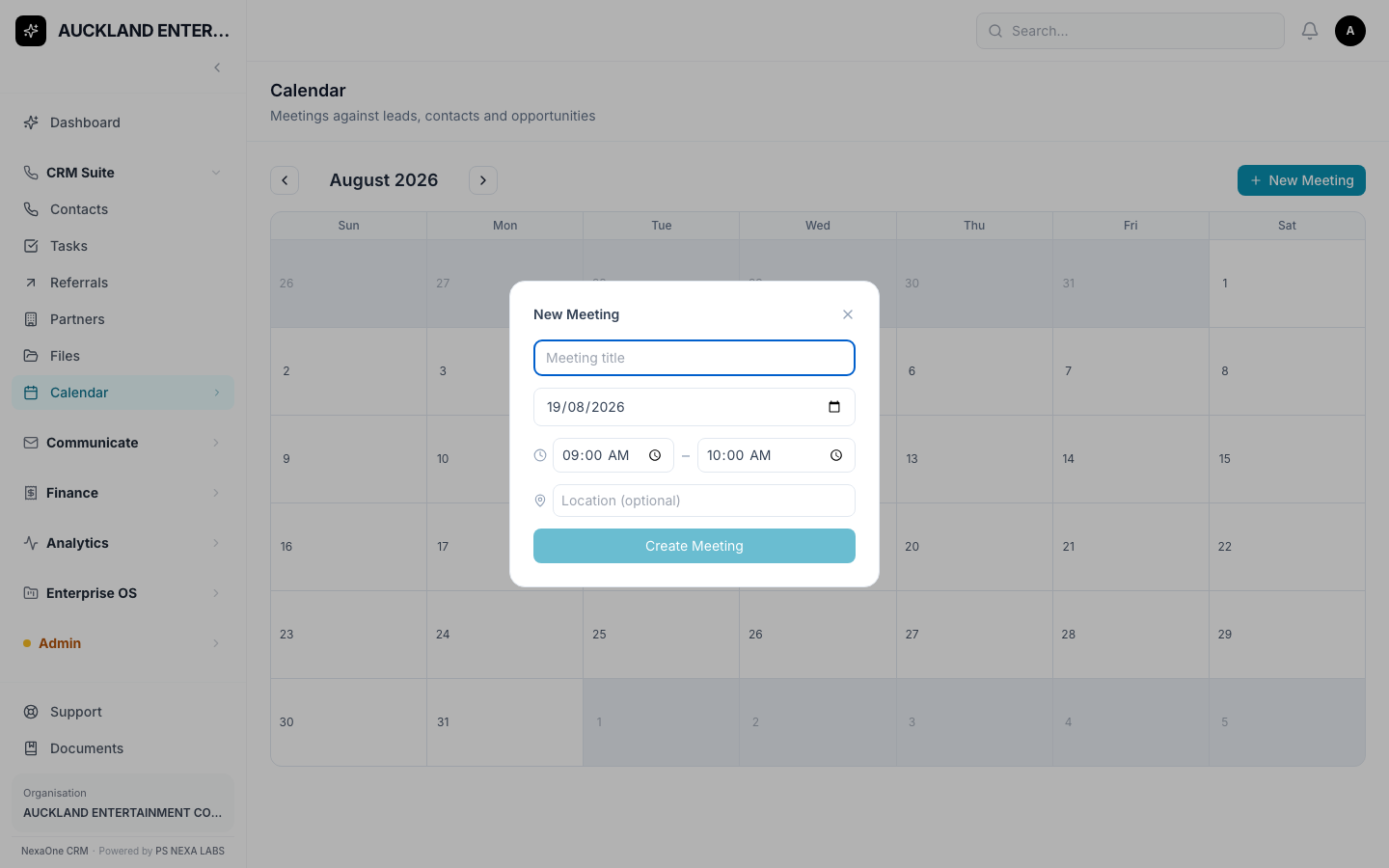
- Click Create Meeting.
Please note: Right now, this form does not let you pick which Contact the meeting is with. You can still write that in the meeting title (for example, "Meeting with Jane Smith") so it's clear later.
A meeting starts as Scheduled, and can be marked Completed or Cancelled once it's happened (or hasn't).
3. Tasks
What is a Task?
A Task is a simple reminder — a to-do item for yourself or someone on your team.
Where do I find it?
Click Tasks on the left-hand menu.
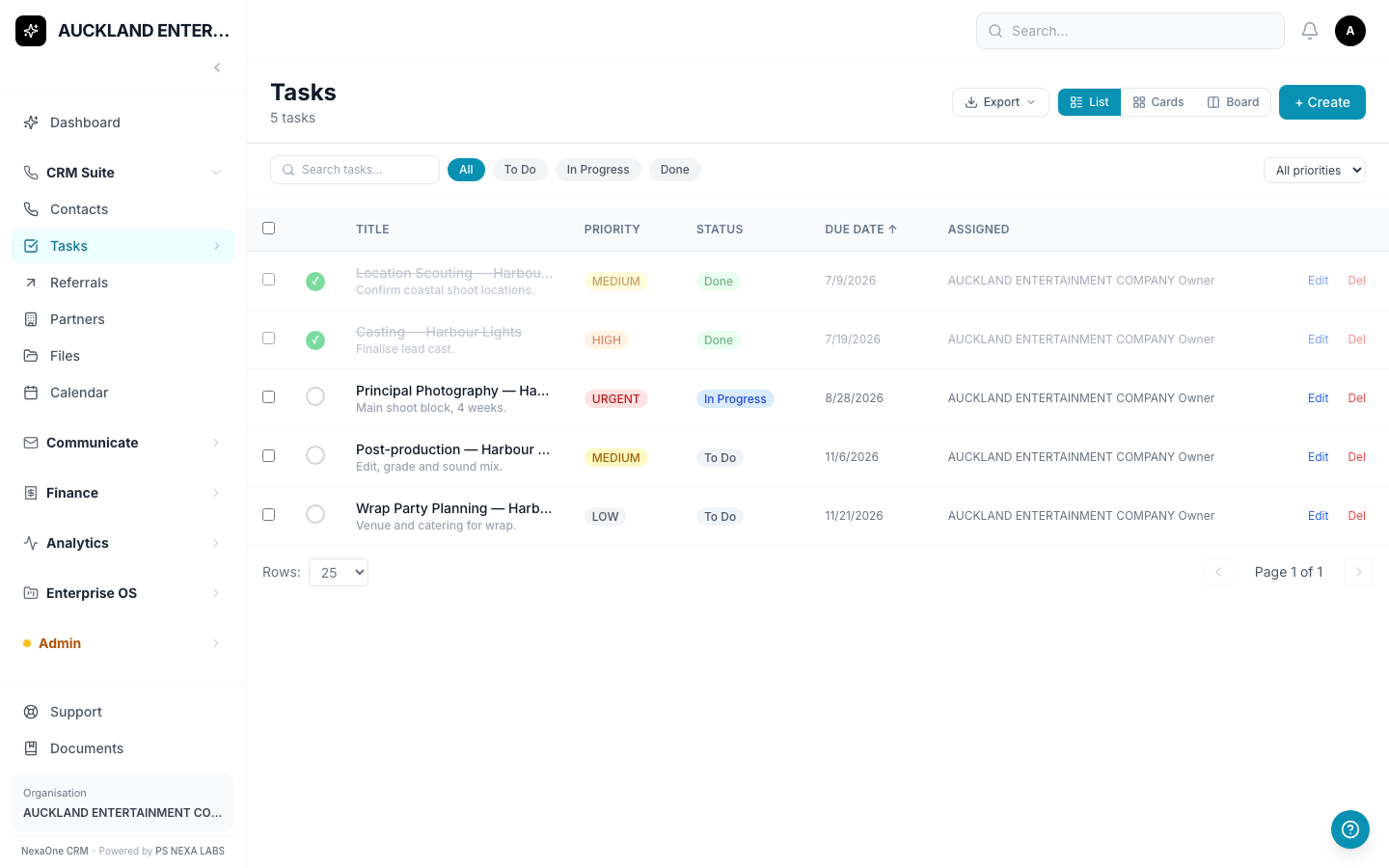
How do I add a task?
- Click + Create.
- Fill in the title (this is the only thing you must fill in).
- If you like, add a description, a due date, how important it is (Low, Medium, High, or Urgent), and who on your team it's assigned to.
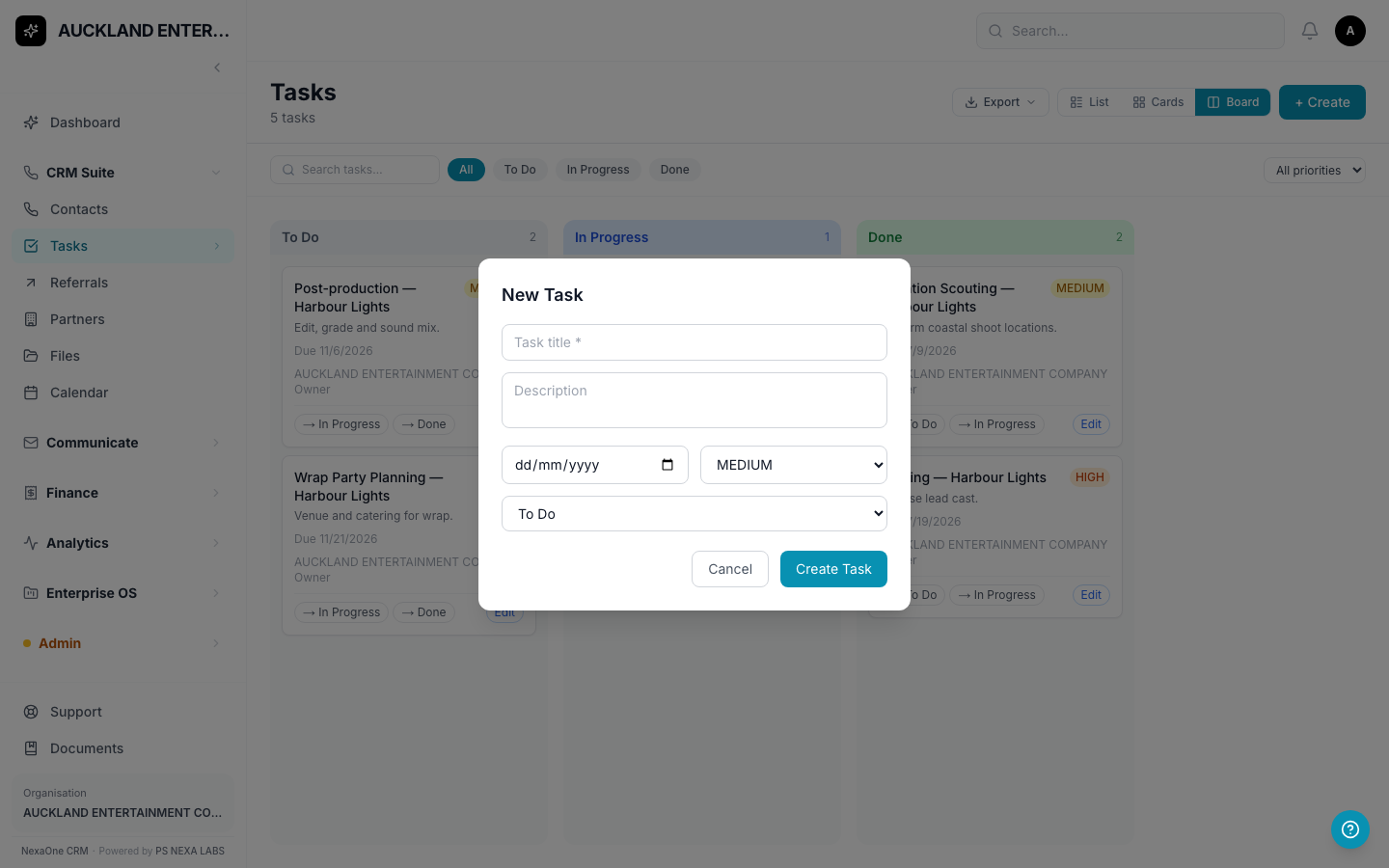
- Click Create Task.
Different ways to see your tasks
You can look at your tasks three ways — click the buttons at the top right:
- List — a simple table, easy to scan
- Cards — bigger cards, colour-coded by importance
- Board — tasks sorted into three columns: To Do, In Progress, and Done
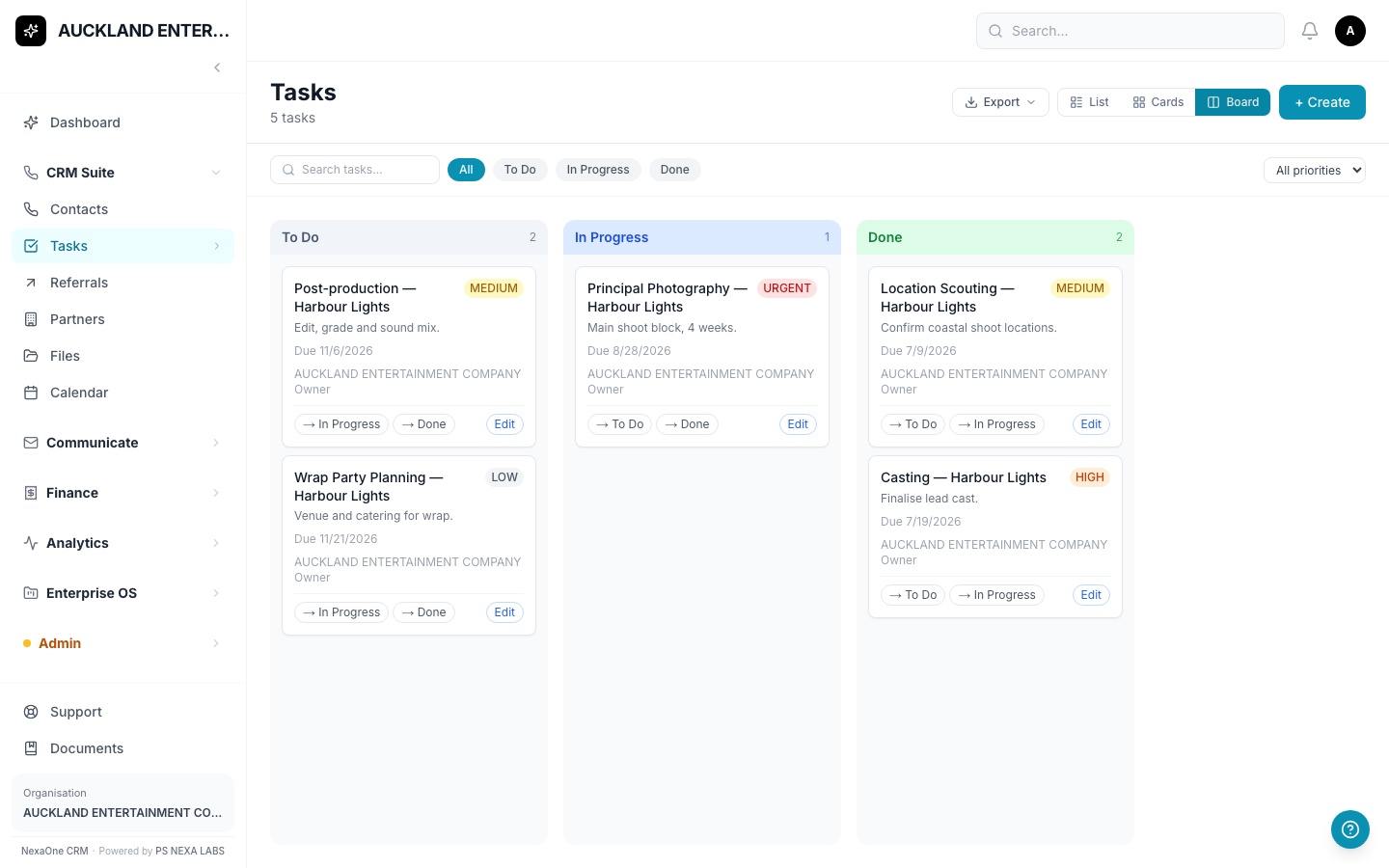
On the Board view, each task card has small buttons that let you move it straight to another column — you don't need to drag anything.
Finished tasks assigned to you also show up on your Dashboard, under "My Tasks Today," so you always know what's due.
4. Referrals
What is a Referral?
A Referral is simply: "I sent someone to a business partner" or "a business partner sent someone to me." It helps you keep track of who introduced who, and whether it led anywhere.
Where do I find it?
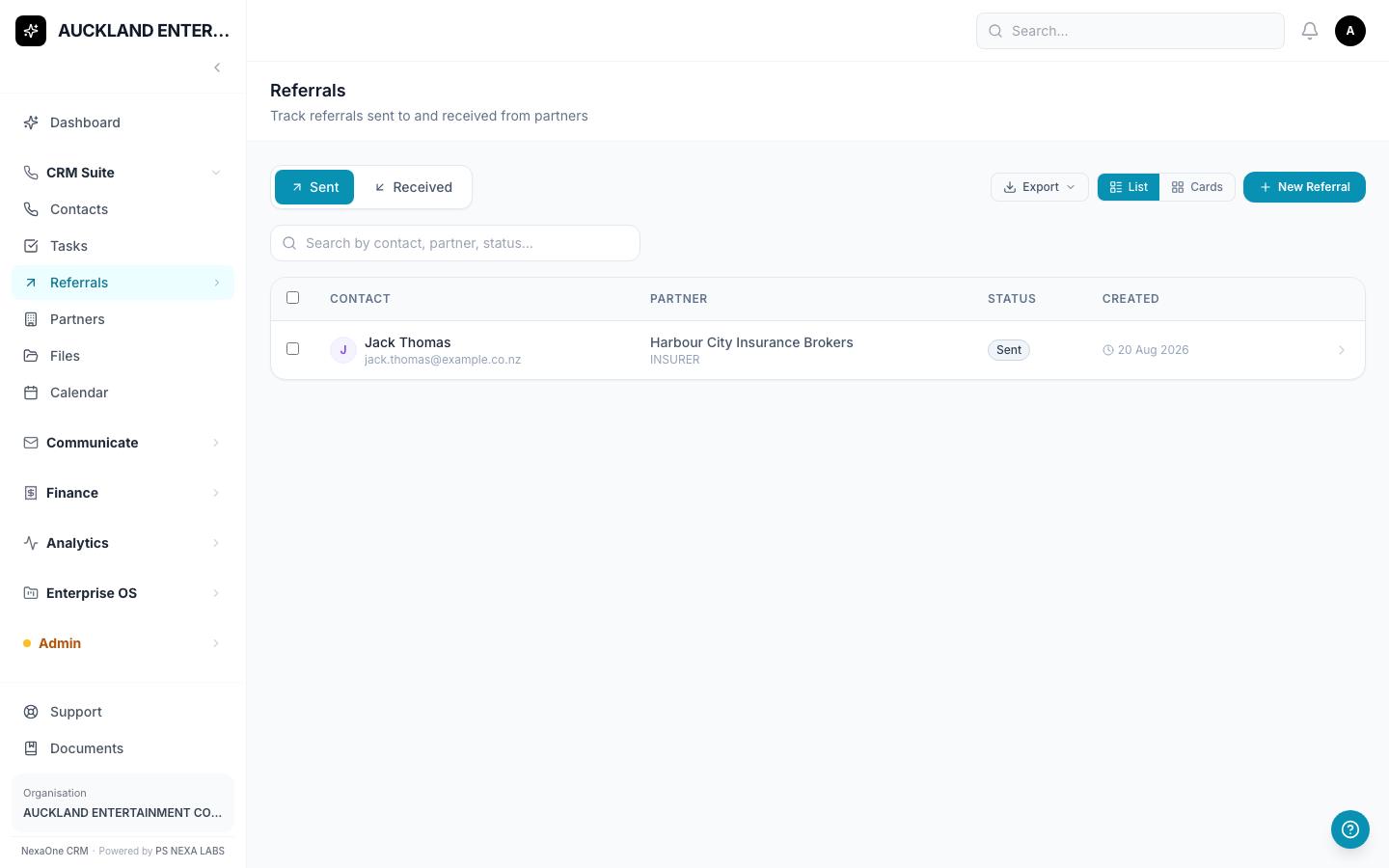
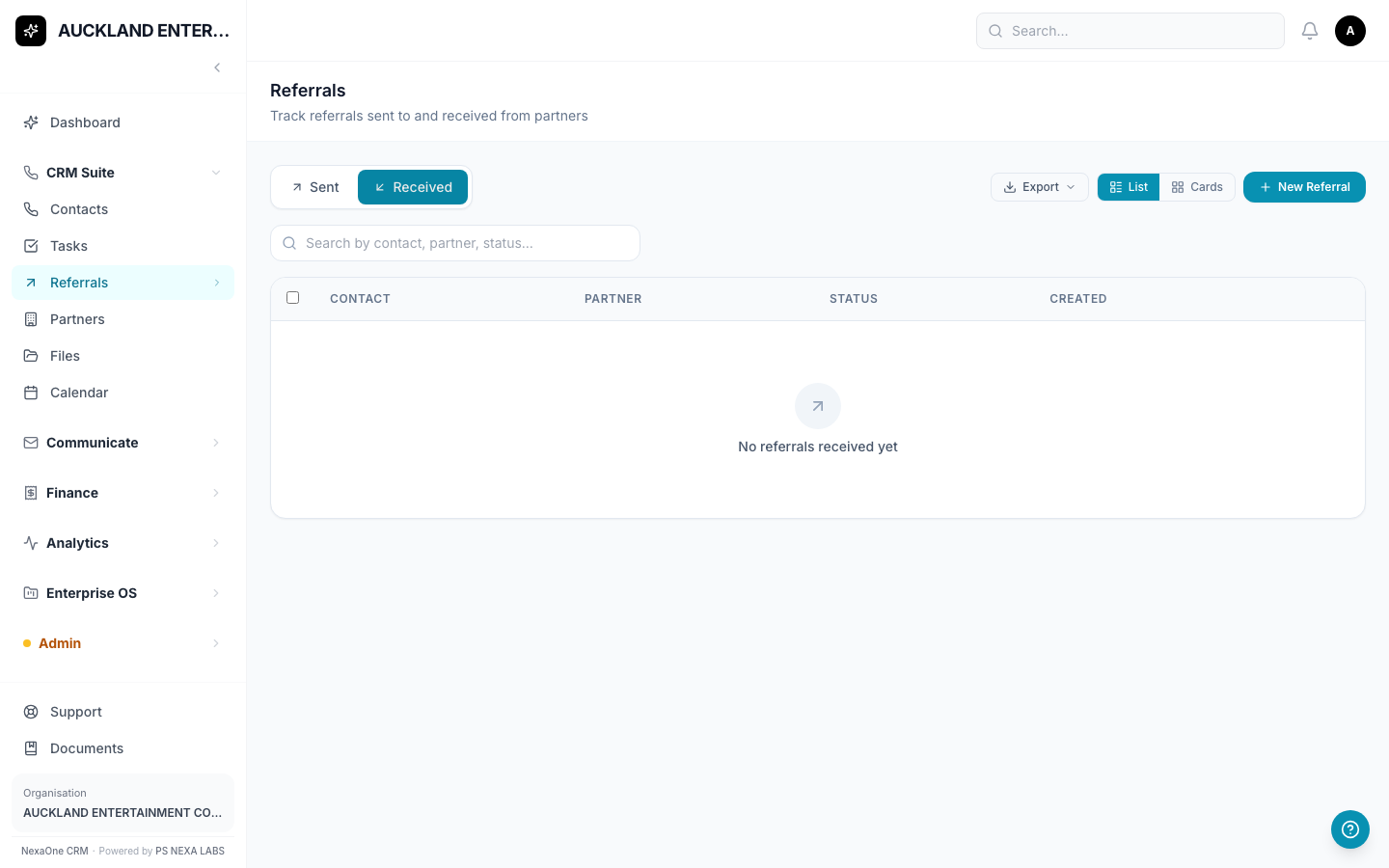
Click Referrals on the left-hand menu. There are two tabs:
- Sent — people you referred out to a partner
- Received — people a partner referred to you
How do I record a new referral?
- Click + New Referral.
- Choose the direction — did you send someone out, or did someone send someone to you?
- Pick which Partner is involved (see Partners below — you'll need to add a partner first if you haven't already).
- Type the name of the person being referred. They don't need to already be a Contact.
- Add their email or phone if you have it, and any notes. Tick Mark as urgent if it needs following up quickly.
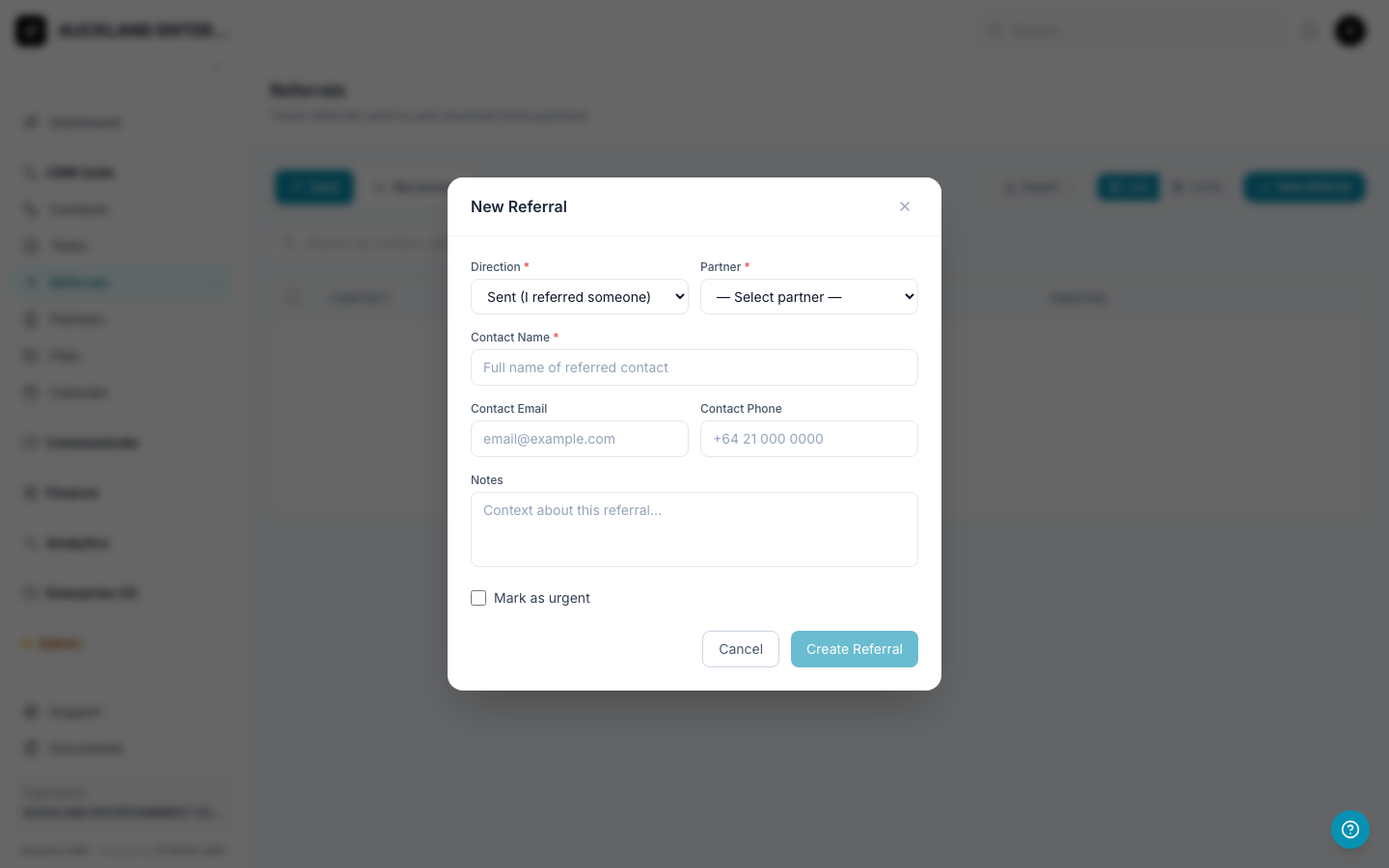
- Click Create Referral.
Following a referral through
Click on any referral in the list to open it and see its full story — when it was created, any notes, and a complete history of every status change.
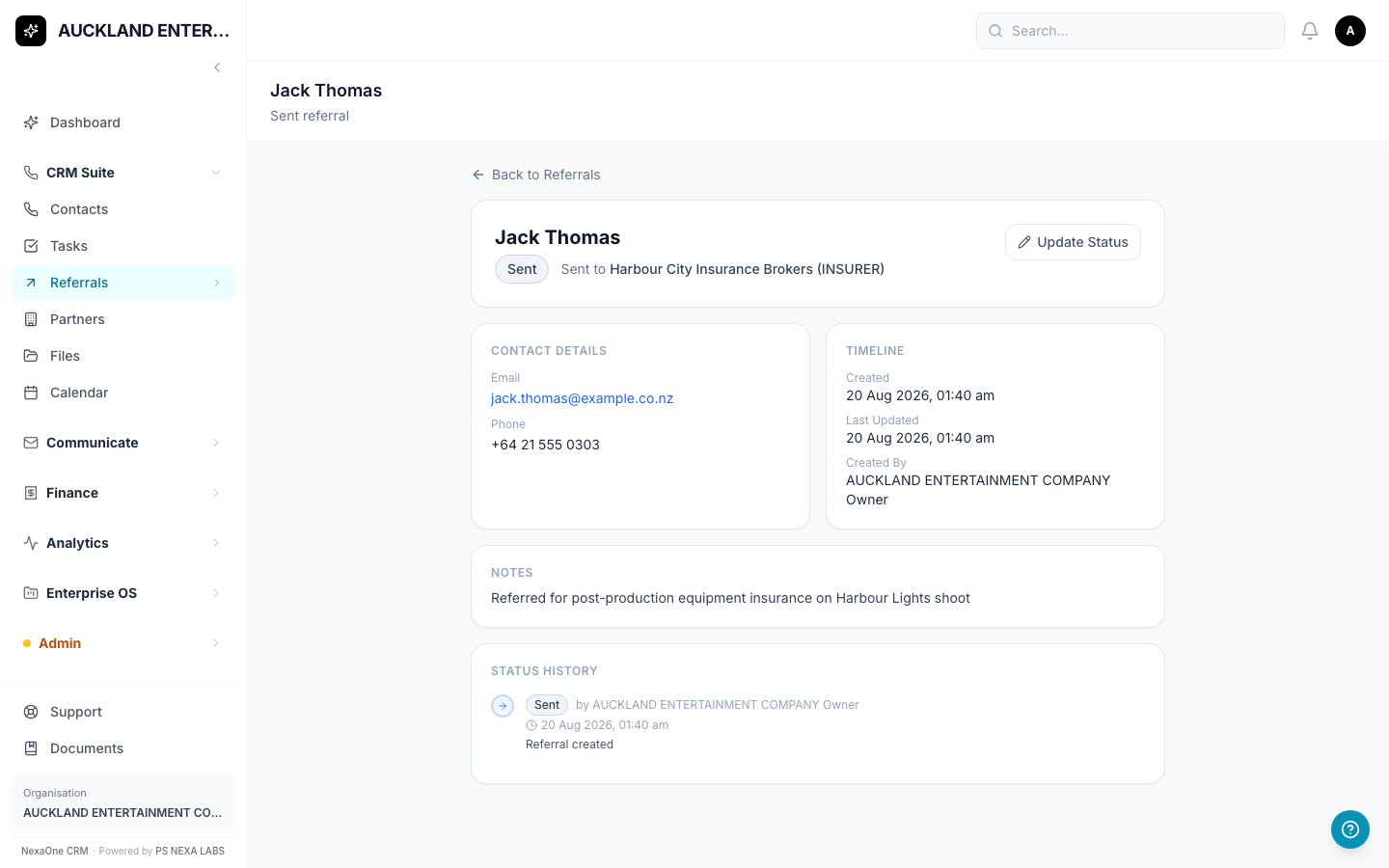
A referral moves through these stages:
Sent  →  Acknowledged  →  Converted (a win!)
                       →  Declined
Click Update Status on the referral's page to move it to the next stage.
5. Partners
What is a Partner?
A Partner is a business you regularly swap referrals with — for example, an accountant, a lawyer, or another company you work alongside.
Where do I find it?
Click Partners on the left-hand menu.
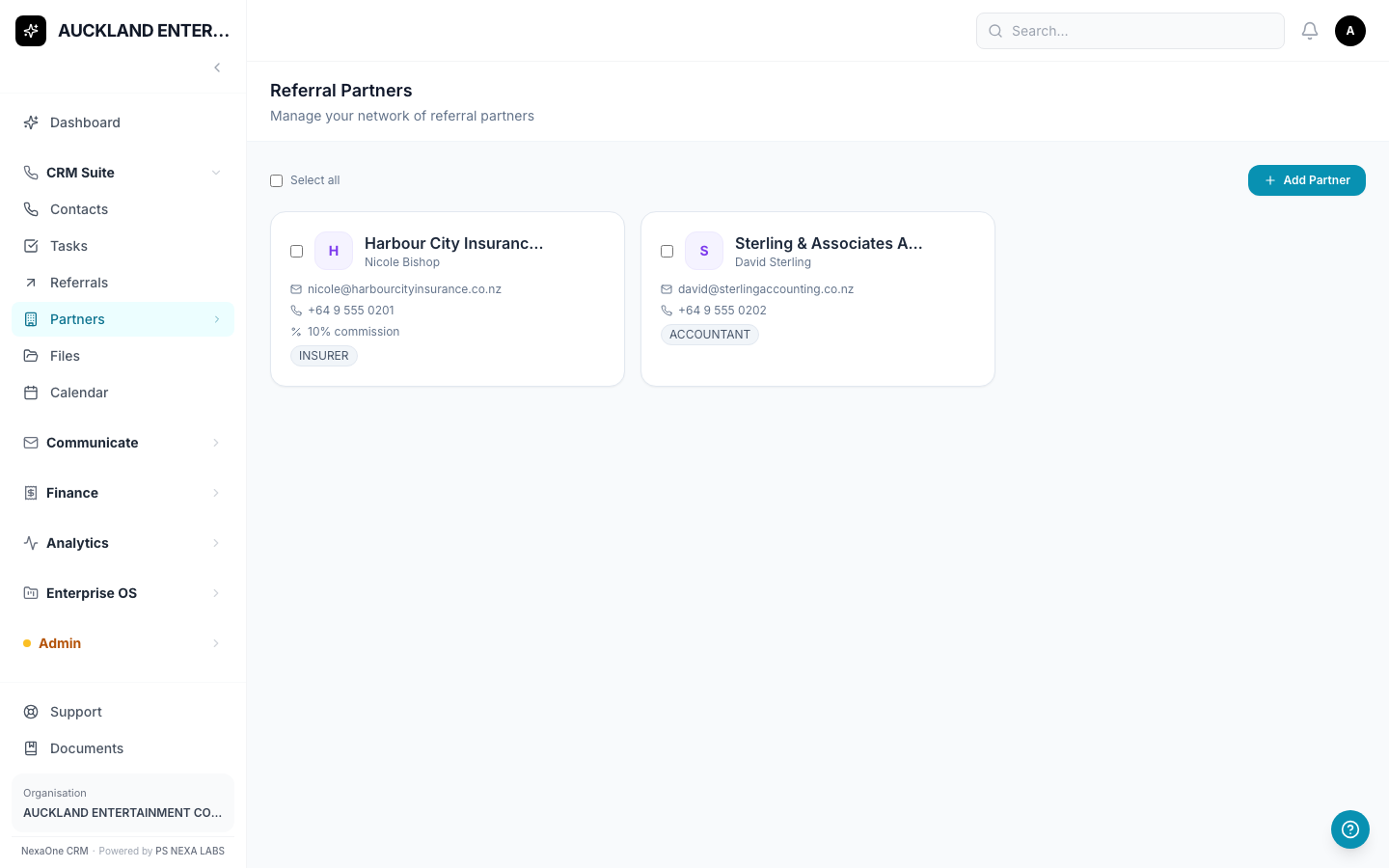
How do I add a partner?
- Click + Add Partner.
- Type the business name — this is the only thing you must fill in.
- Choose a category: Lender, Insurer, Accountant, Solicitor, or Other.
- If you like, add a contact person's name, email, phone number, website, and a commission percentage (if you pay or receive a % for referrals).
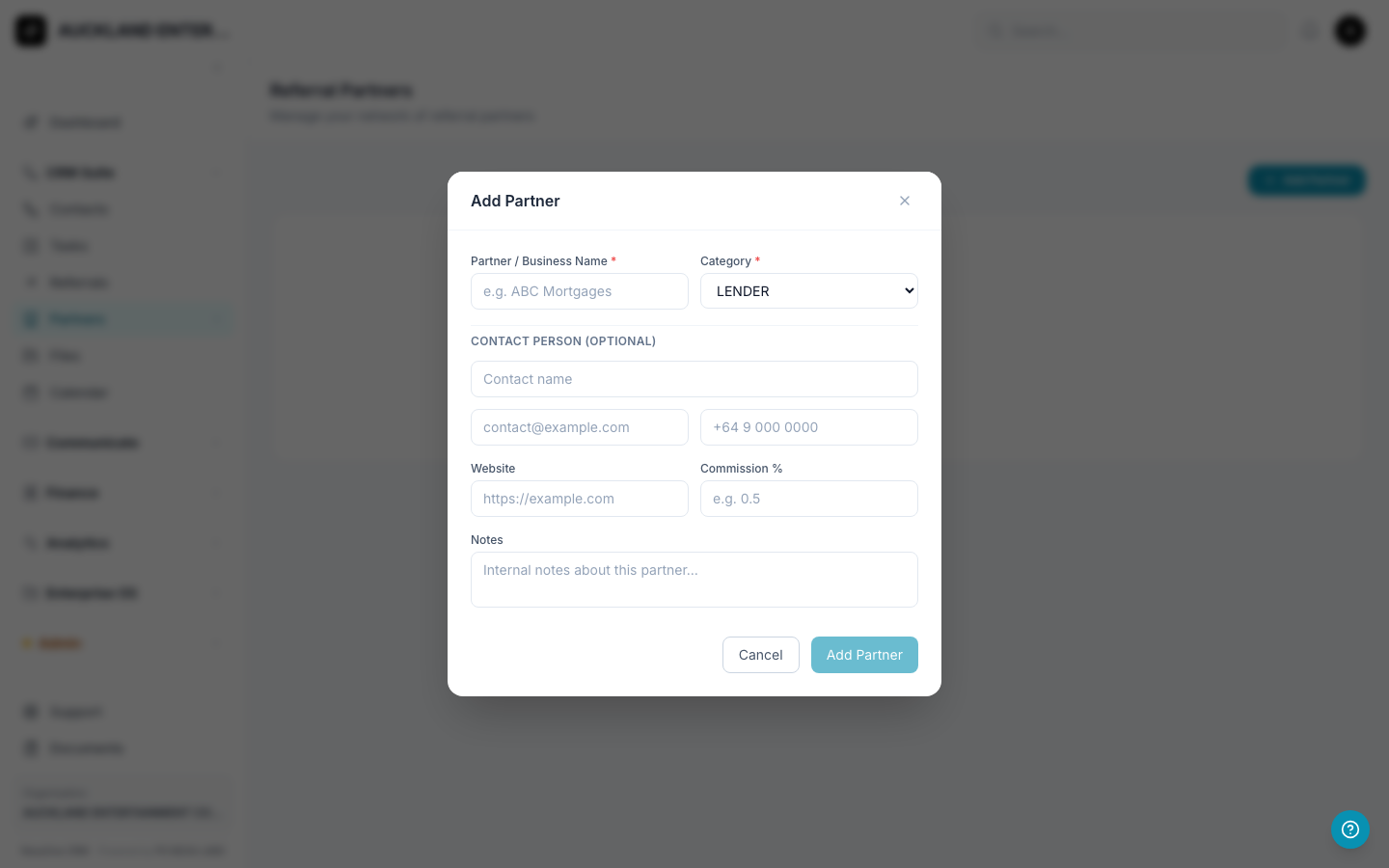
- Click Add Partner.
Once a Partner is added, they'll show up as an option whenever you create a new Referral.
Adding Many People at Once
If you already have a list of Contacts, Leads, or Deals written down somewhere (like in a spreadsheet), you can upload them all together instead of typing each one in by hand.
- Click Admin, then Bulk Upload, on the left-hand menu.
- Choose which kind of list you're uploading — there are three tabs: Contacts, Leads, or Pipeline Opportunities (deals).
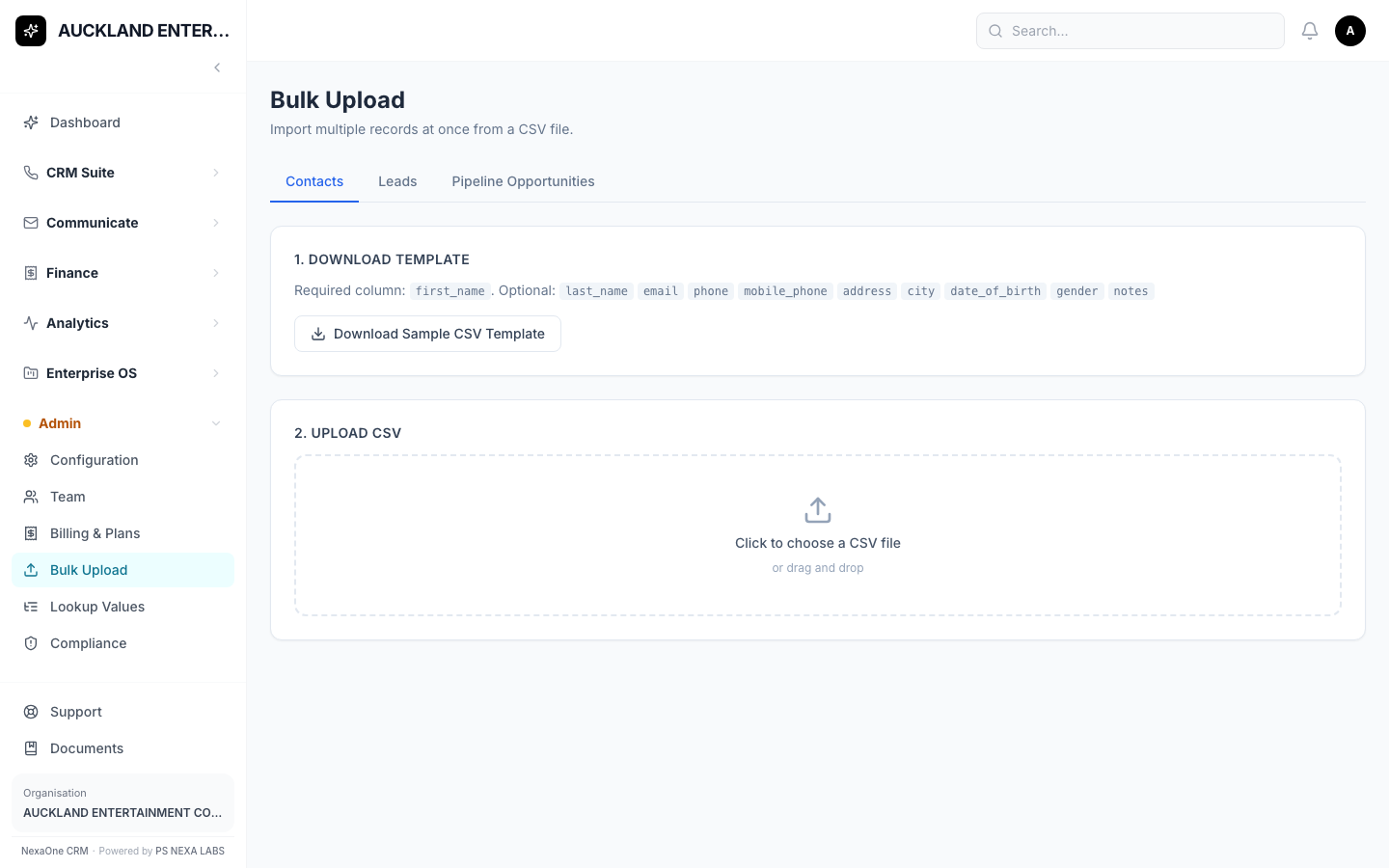
- Click Download Sample CSV Template first — this gives you a file with the correct column headings to fill in. For Contacts, only "first_name" is required; everything else is optional.
- Fill in your spreadsheet, save it as a CSV file.
- Click the upload box (or drag your file into it) to choose your file.
- Click Import. Anything that works gets added straight away. Anything with a mistake (like a missing name) is listed separately, so you can fix just those rows — the rest of your list still goes through fine.
A Word About Leads and Deals
"Leads" (people who might become a client) and "Deals" (also called Opportunities, tracked through stages like "Meeting Booked" or "Proposal Sent") are covered in a separate, simple guide, since they work a little differently from Contacts. Ask whoever shared this guide with you for the Leads and Deals guide if you need it.
Common Questions
I can't find something I'm looking for — what do I do? Try the search box at the top of whichever screen you're on (Contacts, Tasks, Referrals). It searches names, emails, and phone numbers.
I clicked a button and it says "Module Not Enabled." That just means that particular feature hasn't been switched on for your organisation. It's not a mistake on your part — ask your manager or admin if you think you should have access to it.
Can I undo something I deleted? Every change made in the system — adding, editing, or deleting — is automatically recorded behind the scenes, including who made the change and when. If something looks wrong, ask your admin to check the history.